
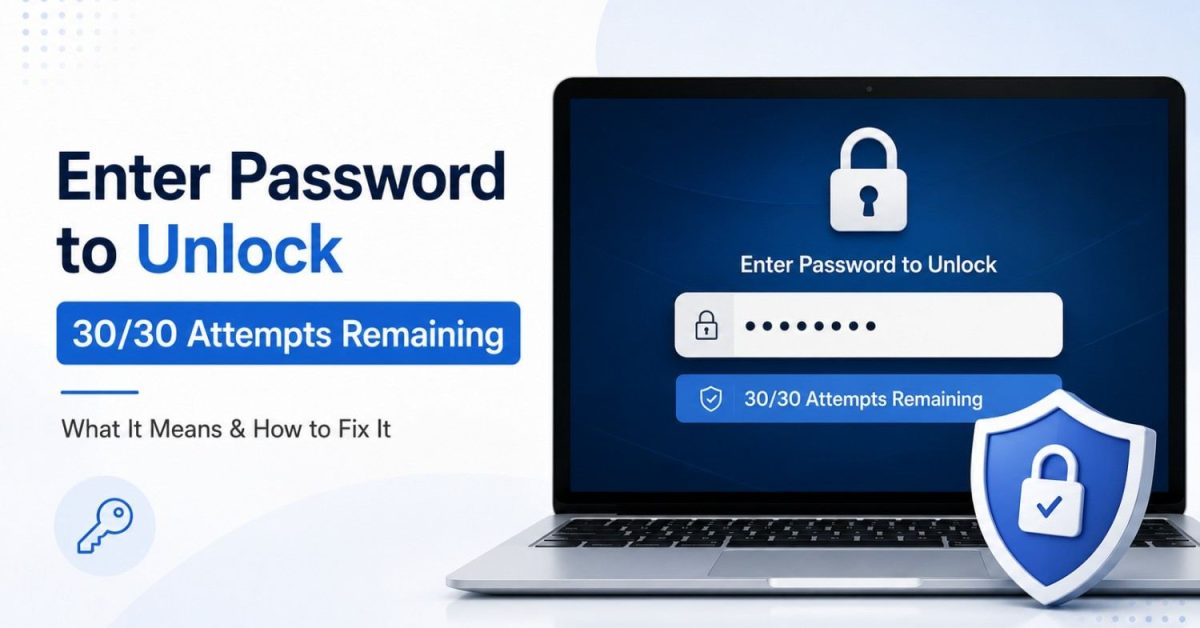
Seeing “Enter password to unlock 30/30 attempts remaining” on your Android phone can be alarming, especially if the message appears after a restart and your fingerprint or other biometric unlock option is no longer available.
This message is commonly associated with password-protected or encrypted Android devices, particularly some older LG phones and Android configurations. The number indicates that the device is limiting how many incorrect password attempts can be made before additional security action may occur.
The most important thing is not to start guessing passwords repeatedly. If you are unsure of the correct credential, preserve your remaining attempts while you identify why the screen appeared and which recovery option applies to your device.
This guide explains what the 30/30 attempts remaining message means, what you should try first, and when a factory reset becomes the last option.
What Does “Enter Password to Unlock 30/30 Attempts Remaining” Mean?
The message means your phone is asking for the primary password or credential required to unlock the device, while displaying a limited number of attempts.
For example:
30/30 attempts remaining
means no failed attempts have yet been counted in that sequence.
After an incorrect entry, the counter may decrease:
29/30 attempts remaining
and continue dropping after additional incorrect attempts.
This prompt is especially associated with certain older Android devices and security configurations where the device requires the primary credential during startup.
That distinction is important. This is not necessarily the same as the ordinary lock screen you see every time you wake your phone.
On devices using startup protection or encryption, Android may require the main PIN, password, or pattern after the device restarts before normal access and some other authentication methods become available.
Why Is My Phone Showing 30/30 Attempts Remaining?
The message can appear for several reasons, but most involve the device requiring its primary security credential.
The Phone Was Restarted
A restart is one of the most common situations in which Android requires the primary screen-lock credential. Even if you normally use a fingerprint or another convenient unlock method, the phone may require your PIN, pattern, or password after startup.
Secure Startup or Device Encryption Is Enabled
Some older Android and LG devices used security features commonly described as Secure Startup.
These features protect device data by requiring authentication during the startup process. Until the correct credential is entered, access to protected data may remain restricted.
You Forgot the Password
The simplest explanation may also be the correct one: the phone is expecting a password or PIN that was configured earlier, but you no longer remember it.
This becomes particularly difficult on an older phone that has not been restarted for a long time because you may be accustomed to unlocking it using biometrics.
The Phone Is Second-Hand
If you bought the device used, the startup credential may have been configured by the previous owner.
In that situation, avoid repeatedly trying possible passwords. Contacting the previous owner is usually safer than exhausting the remaining attempts.
The Password You Expect Is Not the Credential Being Requested
Users sometimes confuse a Google Account password, SIM PIN, app password, and Android screen-lock credential. This type of confusion is common across all platforms, similar to how iOS users often struggle to manage or locate saved passwords on iPhone. The startup screen may be asking for the device’s existing screen-lock or startup credential , not your current Google Account password
What Happens If You Use All 30 Attempts?
Do not assume that every Android phone behaves identically when the counter reaches zero. The result can vary depending on the phone manufacturer, Android version, security configuration, and type of lock being displayed.
Some configurations may impose additional restrictions or ultimately require recovery actions. Because of those differences, claims that every device will automatically erase itself after exactly 30 failed attempts should be treated cautiously.
The safest approach is simple:
If you do not know the password, stop guessing before the counter gets lower.
Preserving your remaining attempts gives you time to identify the exact phone model and investigate legitimate recovery options.
How to Fix Enter Password to Unlock 30/30 Attempts Remaining
Start with methods that do not erase your data. A factory reset should be considered only after safer options have been exhausted.
1. Stop Entering Random Passwords
If you have already tried several passwords without success, stop.
Repeated guessing can reduce the remaining attempt counter without bringing you any closer to recovering the phone.
Instead, think about which credential the device is actually requesting.
Consider passwords or PINs you used when:
- Setting up the phone
- Enabling the screen lock
- Enabling startup security
- Changing the screen lock
- Setting up the device after a previous reset
Only enter a credential when you have a reasonable reason to believe it is correct.
2. Try the Primary PIN, Pattern, or Password Carefully
If you normally unlock the phone using a fingerprint or another biometric method, try to remember the primary credential configured as its backup.
Android devices use a PIN, pattern, or password as the underlying screen lock even when biometric authentication is enabled.
Check simple possibilities before assuming the credential has been forgotten completely. For example, think about whether you recently changed your PIN or password and are entering the older one out of habit.
Avoid trying every password you have ever used.
3. Check Whether the Phone Is Asking for a SIM PIN
A SIM PIN and device password are different.
A SIM-related prompt normally refers specifically to the SIM or network rather than displaying the standard device-unlock wording.
If the screen is requesting a SIM PIN, contact your carrier if necessary rather than guessing repeatedly. Too many incorrect SIM PIN attempts can create a separate SIM-lock problem.
4. Wait If the Phone Imposes a Temporary Timeout
Some Android lock screens impose a delay after repeated incorrect attempts.
If your phone explicitly tells you to wait before trying again, follow that instruction. Rebooting or repeatedly interacting with the phone is unlikely to help during a security timeout.
Once the waiting period ends, enter the correct credential carefully.
5. Look for an Official Recovery Option on the Screen
Older Android versions and manufacturer-specific implementations sometimes provide recovery options directly from the lock screen.
If your phone displays an option such as:
Forgot pattern?
or another manufacturer-provided recovery option, follow the instructions shown on the device. However, do not assume that every Android phone supports account-based password recovery.
In particular, the old Google Account method for resetting a forgotten pattern applied to much older Android versions and should not be presented as a universal solution for modern phones.
6. Contact the Previous Owner of a Used Phone
If you purchased the device second-hand and never configured its startup password yourself, contact the previous owner. They may need to provide the existing credential or properly remove their accounts and security configuration before transferring the phone.
This is also important because resetting a protected Android phone can trigger ownership verification during setup. If you cannot verify ownership after the reset, you may still be unable to use the device.
7. Check the Phone Manufacturer’s Recovery Instructions
Before performing a factory reset, identify the exact:
- Manufacturer
- Model number
- Android version, if known
Then check the manufacturer’s official support instructions.
Recovery button combinations and available options vary between devices. Instructions intended for one LG, Samsung, Motorola, Pixel, or other Android model should not automatically be used on another.
Manufacturer-specific guidance is particularly important for older phones displaying the exact 30/30 attempts message.
8. Factory Reset the Phone as a Last Resort
If the correct credential has genuinely been forgotten and no supported recovery method works, a factory reset may be the remaining option. Google’s official Android device recovery guidance explains the available options when you can no longer unlock your device.
Warning: A factory reset erases data stored locally on the phone.
This can include:
- Installed apps
- Local photos and videos
- Downloads
- Messages stored only on the device
- App data
- Device settings
- Other files that were not backed up
Data already synchronized or backed up to your Google Account or another cloud service may be recoverable afterward. Because reset procedures differ by device, use the manufacturer’s instructions for your exact model rather than following a random button combination.
Can a Google Account Unlock the 30/30 Attempts Screen?
Usually, you should not assume that entering your Google Account password will directly unlock this screen. Google Account credentials and Android screen-lock credentials serve different purposes.
Very old Android versions offered account-based recovery for certain forgotten patterns. That feature does not mean every Android password screen can be unlocked using the associated Google Account.
On newer Android devices, if the screen-lock credential is forgotten and the device cannot be unlocked, the supported recovery path may require erasing the phone and setting it up again.
Your Google Account becomes especially important after a reset, when Android may require account information to verify ownership of a protected device.
Can Google Find My Device Remove the Password?
Google’s Find Hub can help locate, secure, or erase an eligible Android device, but it should not be treated as a general tool for removing a forgotten screen-lock password.
It should not be treated as a general tool for remotely removing an existing screen password you have forgotten.If the device cannot be recovered and you choose to erase it remotely, the operation deletes the phone’s local data.
Afterward, Android’s device protection may still require the Google Account previously associated with the device before setup can continue. So this is not a password-bypass method.
How to Fix 30/30 Attempts Remaining on an LG Phone
The exact 30/30 attempts remaining wording is particularly relevant to users of some older LG Android phones.
If the message appears immediately after restarting an LG phone, first determine whether the device is requesting the credential associated with its startup or screen-lock security.
Try the primary password or PIN you genuinely believe was configured on the phone. Do not burn through the remaining attempts trying random combinations.
If the password is completely forgotten:
- Stop making additional guesses.
- Identify the exact LG model.
- Check whether the device presents an official recovery option.
- Check the appropriate manufacturer/device documentation.
- Confirm that you know the Google Account previously associated with the phone.
- Consider a factory reset only if legitimate non-destructive recovery options are unavailable.
Older LG models can differ significantly in Android version and recovery procedure, so a single set of button instructions should not be treated as universal.
Will a Factory Reset Remove the 30/30 Attempts Error?
A successful factory reset generally removes the local device configuration responsible for the existing screen lock because it returns the phone to its factory state.
But there are two major consequences.
Your Local Data Is Erased
Anything stored only on the phone can be lost.
This is why factory reset should come after attempts to recover access without erasing the device.
You May Need to Verify Ownership
Resetting the phone does not necessarily mean anyone can immediately start using it.
Android includes device-protection mechanisms designed to make stolen phones less useful after unauthorized resets.
During setup, you may therefore be required to provide a Google Account that was previously added and synchronized with the device or other qualifying ownership credentials.
Make sure you know your account information before resetting whenever possible.
Can You Fix 30/30 Attempts Remaining Without Losing Data?
Yes, but only in certain situations.
You may preserve your data if:
- You remember the correct credential
- The phone offers a legitimate recovery method that does not erase data
- The problem is a temporary lockout rather than a forgotten credential
- The previous owner can provide the required credential on a legitimately transferred device
The situation becomes much harder when the correct credential protecting encrypted device data has genuinely been forgotten.
Modern smartphone security is intentionally designed to prevent someone from simply bypassing a lock and gaining access to private files.
Be cautious with software or websites promising a guaranteed one-click unlock without data loss. Security professionals testing the validity of these third-party unlocking applications often buy mobile proxy services to safely inspect the software’s network traffic and prevent IP tracking. Whether recovery without erasure is possible depends heavily on the phone, Android version, lock type, and security configuration.
Why Restarting the Phone Usually Doesn’t Reset the Counter
Restarting is worth trying for ordinary software glitches, but it should not be expected to bypass a security credential or reliably restore your remaining password attempts.
A startup security mechanism would provide little protection if an attacker could simply reboot the phone whenever the attempt counter became low. More importantly, restarting can cause Android to require the primary PIN, pattern, or password before biometric authentication becomes available again.
If you know the correct credential, that is not a problem. If you have forgotten it, repeated restarts are unlikely to solve the underlying issue.
Quick Decision Guide
| Your Situation | Best First Step | Risk of Data Loss |
|---|---|---|
| You know the likely password/PIN | Enter it carefully | None |
| Phone shows a temporary timeout | Wait for the timer | None |
| Official recovery option appears | Follow that option | Depends on method |
| Second-hand phone | Contact previous owner | None |
| Password completely forgotten | Check official device recovery | Depends |
| No supported recovery works | Factory reset | High |
| Google Find Hub is available | Use it for locating/securing; erase only if needed | Erase deletes data |
How to Prevent This Problem in the Future
Once you regain access to your phone or set it up again, a few precautions can make future lockouts much easier to handle.
- Keep your primary credential memorable. Biometrics are convenient, but you will still need your underlying PIN, pattern, or password in certain situations.
- Maintain regular backups. Important photos, documents, contacts, and other data should not exist only on one phone. Good security habits also go beyond screen locks. Follow these computer virus prevention tips to better protect your devices and personal data.
- Keep your Google Account recovery information current. Make sure you can access the email address, phone number, and authentication methods associated with your account.
- Understand security settings before enabling them. Features involving startup authentication or encryption can provide valuable protection, but you need to understand which credential will be required.
- Properly reset second-hand devices. When buying or selling a used Android phone, remove accounts and complete the appropriate reset process before ownership changes.
Key Takeaways
The “Enter password to unlock 30/30 attempts remaining” message indicates that the device is protecting access with a limited number of password attempts.
It is particularly associated with certain older Android and LG security configurations, so not every modern Android device will behave the same way. If you know the likely password, enter it carefully. If you do not know it, avoid random guesses and investigate the recovery options available for your exact device.
A Google Account should not be treated as a universal replacement for a forgotten Android screen-lock password, and Find Hub does not provide a general remote password-removal feature.
If no legitimate recovery option works, a factory reset may restore use of the phone, but it erases local data and can require ownership verification afterward.
Frequently Asked Questions
1. Why does my LG phone say 30/30 attempts remaining?
Some older LG devices display this message when startup or device security requires the primary password. It means the device is tracking a limited number of incorrect unlock attempts.
2. What happens when 30/30 attempts reach zero?
The exact behavior depends on the phone, Android version, and security configuration. Avoid testing it by intentionally entering incorrect passwords.
3. Can I unlock 30/30 attempts remaining without resetting my phone?
Possibly. If you remember the correct credential or your device provides an applicable official recovery option, you may regain access without erasing it. If the required credential is completely forgotten, recovery options can be much more limited.
4. Does restarting the phone reset the 30 attempts?
You should not rely on a restart to restore password attempts. Restarting can also require you to enter your primary credential before biometric unlocking becomes available again.
5. Can I use my Google Account to unlock the phone?
Not as a universal solution. Google Account-based forgotten-pattern recovery was available on certain older Android versions, while current locked-device recovery may require erasing the device if the screen lock cannot be recovered.
6. Can Find My Device unlock my password?
Google’s current Find Hub service can locate, secure, and erase supported devices, but it should not be treated as a general remote tool for removing an existing forgotten screen password.
7. Will a factory reset fix the 30/30 attempts problem?
A factory reset can remove the existing local lock configuration by erasing the phone, but all locally stored data is also deleted. Android may require previous account information during setup to verify ownership.
8. Will I lose my photos after a factory reset?
Photos stored only on the device can be erased. Photos already backed up to a cloud service such as Google Photos may remain available through the associated account.
