A lot of product demos start with a still image: a mascot, an onboarding character or a rendered 3D figure. Sooner or later, someone asks whether that still can move the way a real person moves, without booking a motion-capture stage or paying for another 3D pass.
That’s a narrow request. It isn’t “make me a video from a prompt.” It’s “take this motion and put it on this picture.”
Kling Motion Control on PixelDojo is built around exactly that request. As of 20 November 2026, the live page is a short tool interface rather than a long sales page. It doesn’t publish a credit table, a clip length or a list of resolutions.
So this article sticks to what the page actually shows. The goal is to help a development or product team decide whether the tool is worth opening, without filling the gaps with numbers nobody has published.
Key takeaways:
- Motion transfer copies the movement from a reference video onto a still image of a character.
- The page confirms two inputs (a motion video and a character image), a few visible options and plans from $10.
- Cost per run, clip length and resolution aren’t published, so test with a small, low-stakes job first.
What Is Motion Transfer?
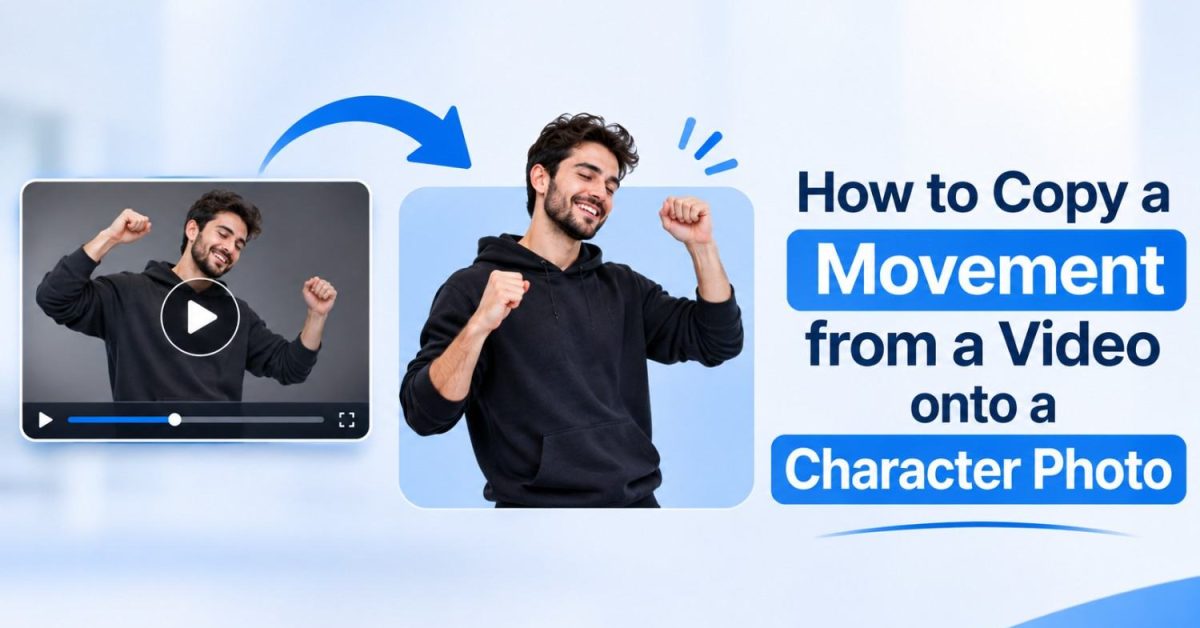
Motion transfer is an AI technique that takes the movement from a reference video, such as a wave, walk or dance, and applies it to a separate still image of a character. The result is a short clip where your character performs the same motion, without filming or animating it by hand.
It sits between simple image-to-video generation and full motion capture. If you want to compare it with broader generators, our roundup of top AI video generators covers the wider field.
What Does Kling Motion Control Do?
Kling Motion Control copies the moves from a video onto a picture of your character. The page heading reads “Bring your character to life with Kling Motion Control,” and the one-line description is just as plain: “Copy the moves from any video onto a picture of your character.”
The meta description goes a little further while staying modest. It says the tool “copies the moves from any video onto your photo or character. Dance, gestures and acting carry over. Plans from $10 on Pixel Dojo.”
That’s the whole published claim. Dance, gestures and acting are the vendor’s examples of movement that should carry over. They aren’t a promise that every motion in your reference clip will land cleanly on every still. The honest way to find out is to try your own character image with a short reference clip you have the rights to use.
The Inputs and Controls on the Page
The interface is built around two inputs and a handful of options:
| Element | What the Page Shows |
|---|---|
| Motion / Motion Transfer | The reference video that supplies the movement |
| Character / Character Image | The still image of the subject |
| Tag tiles | A “Tap a tile to insert its #tag” control |
| Mode | A Standard setting |
| Match Video | An optional toggle |
| Keep sound | An option to keep the reference audio |
| Model | Labeled Kling 3.0 |
The text you can read without signing in doesn’t explain what Standard changes compared with other modes, or exactly what Match Video does. If either setting matters for your demo, read the on-screen description when you open the tool rather than assuming a behavior.
Keep sound is worth taking at face value. If your reference clip has a beat, a footstep or a spoken cue you want to keep, there’s a control for it. The page doesn’t say whether the output always includes sound or only when that option is on.
What Does the Page Leave Out?
The logged-out Motion Control page doesn’t publish the details most teams need for budgeting. Missing information includes:
- Credit cost per run
- Maximum clip length in seconds
- Output resolution
- Aspect ratios
- Ownership terms or a commercial-use statement
Don’t Misread the Sitewide Banners
The page also carries sitewide banners that are easy to misread:
- “Unlimited on every plan”: This applies to the tools it names (Flux 3 Klein, H3 Image, Qwen 2.1, MiniMax H3 Video and 310+ effects), not to Kling Motion Control.
- WAN 3.0 1080p price change: That rate belongs to WAN 3.0, not to this tool.
Don’t budget a motion-transfer job from either banner. The only plan figure that belongs to this page is the one in its description: plans from $10. The page doesn’t break that down into monthly credit amounts.
Generations Disappear After 24 Hours
After you generate, the page tells you generations are shown for 24 hours and that you should save or download anything you want to keep. That’s a practical limit, not a legal one, and it’s easy to miss if you treat the tool like a permanent asset library.
How to Test Motion Transfer on a Real Demo
The best way to judge the tool is a small, controlled test. Follow these steps:
- Choose a still you have rights to. Use a character or product image you’re allowed to show. Avoid photos of real people who haven’t agreed to appear in a generated clip.
- Pick a short reference video with one clear action. A wave, a turn, a walk cycle or a simple gesture works best. The page’s own examples point to dance, gestures and acting, so a single readable move is a fairer test than a busy scene.
- Load both inputs and generate once. Leave the optional controls on their defaults for the first run.
- Check the core promise. Does the motion from the video show up on the still, or does the character just drift?
- Test sound if it matters. Run the same job with Keep sound on and listen for the reference audio in the file.
- Download immediately. The page only shows generations for 24 hours.
If the result is close but not right, change one thing at a time. Try a different still, a cleaner reference clip or a setting you can actually see in the interface. The page doesn’t document any advanced controls, so building a workflow around hidden options would be guesswork.
PixelDojo is the live tool page for that test. The description, the two inputs and the visible options are all there. The missing numbers are “there” too, in the sense that you can see they aren’t published. If your team needs a cost per second or a fixed output length before it can approve a tool, that gap is a useful finding in itself. It isn’t a reason to invent a figure.
Where Does Motion Transfer Fit?
Motion transfer fits the narrow case where you have a character still, a clip of a movement and no production budget to combine them. It won’t replace a recorded demo of your real product, or a motion-capture session when you need an exact performance.
For that narrow case, the page states the job clearly. Cost, length and output quality still have to be checked inside the tool. Use a file you’re happy to throw away, and note what you change between runs. If you’re weighing Kling against other platforms, our Kling vs Runway vs Pollo AI comparison explains where each one stands.
Frequently Asked Questions
Can AI copy a movement from a video onto a photo?
Yes. Motion transfer tools take the movement from a reference video and apply it to a still image of a character. Results depend on how clear the motion is and how well the character image suits it, so short, simple actions usually work best.
What do I need to use Kling Motion Control?
You need two inputs: a reference video that shows the movement and a still image of the character you want to animate. Both should be files you have the rights to use, especially if the clip will appear in a public demo.
How much does Kling Motion Control cost?
The page lists plans from $10, but it doesn’t publish the credit cost per run, the maximum clip length or the output resolution. Check those details inside the tool before you plan a budget around it.
Can motion transfer replace motion capture?
Not for precise work. Motion transfer is useful for quick character animations and demo clips, but a motion-capture session is still the better choice when you need an exact, repeatable performance.
