

Product photos should build trust at a glance.
For many ecommerce sellers, the problem isn’t the product itself. It’s how the product looks in its surroundings: a busy table, a patterned cloth or poor lighting behind it.
Most shoppers look at the main image before they read the description, compare prices or check reviews. That first look either makes the product feel clear and credible, or leaves the listing feeling unfinished.
This guide looks at how Removal.AI handles that job. It’s an AI tool that strips the background from ordinary product photos and replaces it with a clean white one. Below, we walk through the full workflow, where the tool helps, and what you still need to check yourself.
Key takeaways:
- White-background images remove distractions so shoppers can focus on the product’s details.
- Removal.AI handles the cutout automatically, including batch uploads, but edges, framing and color accuracy still need a human check.
- Use white-background images as the main photo, and add lifestyle images to show scale and context.
Why Do Clean, Plain Background Product Photos Still Work?
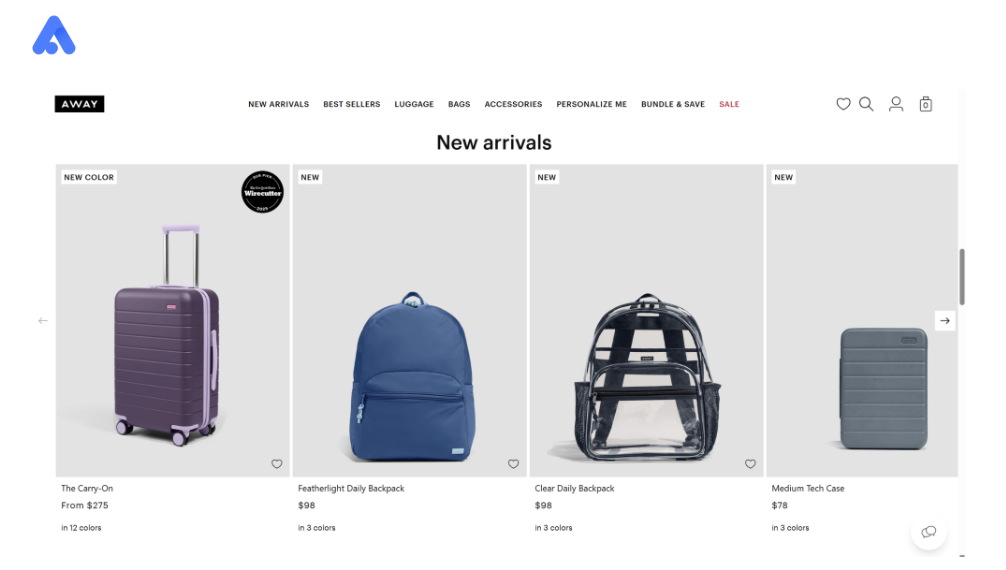
A plain background removes every distraction, so shoppers see only the product.
Without furniture, wall colors or patterned tablecloths competing for attention, buyers can judge a product by its shape, color, texture, size and other key details.
This matters in ecommerce because shoppers can’t hold the item. They judge it entirely through a screen:
- The label on a skincare bottle should be readable.
- The structure of a handbag should be clear.
- Shoes should show their shape, stitching, sole thickness and material.
- A phone case should show its fit, texture and color.
Marketplaces also expect clean images. Amazon’s product image guidelines, for example, require the main image to have a pure white background, with the product filling at least 85% of the frame. Not every platform uses the same rules, but a consistent white-background approach keeps your listings orderly wherever you sell.
A clean image won’t guarantee a sale, but it gives your catalog a tidy, uniform look and helps your product hold its own when shoppers compare similar items.
What Does Removal.AI Do?
Removal.AI detects the subject in a photo, cuts it out and places it on a white, transparent or custom background.
In our walkthrough, the features that matter most for product sellers were:
- Automatic subject detection: No manual tracing or layers.
- Edge handling: Smooth cutouts, including hair and fur-like details.
- Batch processing: Many images can be processed in a single upload.
- Background options: White, transparent or a custom backdrop.
Typical uses include product listings, marketplace images, website catalogs, social commerce posts, shopping feeds and building a consistent product gallery.
It’s most useful when you’re launching new SKUs, refreshing older listings or trying to make a large catalog look consistent.
Step 1: Start With a Product Photo That’s Easy to Edit
Your final image is only as good as your original. Any AI tool can remove a messy background, but none can rescue a blurry or badly lit photo.
Before uploading, make sure your photo shows:
- The entire product
- The product in sharp focus
- Even lighting across the product
- Clear separation between the product and the background
- Key edges that aren’t blocked by hands, props or packaging
For example, a skincare bottle photographed on a plain table near a window will be much easier to edit than the same bottle shot in a dark room against patterned fabric. Clear edges give the tool something definite to work with.
Good images also reduce shopper uncertainty. Baymard Institute’s ecommerce research has found that viewing product images is often the first thing users do on a product page, so the main image needs to match what they expect.
Step 2: Upload the Image

Upload your photo, and Removal.AI automatically recognizes the product, removes the background and shows you the cutout for review.
You don’t need manual tracing, complicated layers or advanced editing. Your job is to check and refine the result.
The time saving is most noticeable with batches. When you’re preparing new products or updating many marketplace images, faster background removal leaves more time for descriptions, pricing and keywords. Sellers with large catalogs can also fit this step into broader AI automation workflows.
Step 3: Check the Cutout Edges
After the background is removed, look closely at the product’s edges. Shoppers notice uneven or missing edges immediately.
Pay special attention to:
- Handles and straps
- Clear packaging
- Jewelry chains
- Shoelaces
- Fabric edges
- Reflective surfaces
- Hair-like fibers or frills
These are the areas where any automatic cutout, including this one, is most likely to need a closer look. A poor cutout can make a real product look fake, and missing edges can make it look damaged. Before processing a large batch, test a small group of products first.
Step 4: Replace the Background With White
Next, place the product on a clean white background. This creates a consistent, catalog-style look where similar items clearly belong to one collection.
Products shouldn’t look flat or pasted onto a blank page, though. Shoes, handbags, cosmetics, electronics, kitchen products and accessories often benefit from a subtle shadow that keeps a sense of depth.
Think of the white background as support for the product, not decoration. It should make the product easier to read without making it look unnatural.
Step 5: Adjust the Product Framing
Each product should be sized properly within the frame. It shouldn’t look tiny, cut off or as if it’s floating in space.
Follow these basic framing rules:
- Center the product where possible.
- Keep spacing consistent across similar products.
- Don’t crop out logos, labels or other identifying details.
- Size the product so shoppers can inspect it up close.
- Frame product variations the same way.
For example, if you sell candles in five scents, each image should show the candle at the same size, spacing and angle, even though the labels differ.
Step 6: Clean Up Small Imperfections Before Downloading
Before saving, zoom in and review the edited image carefully. Check for:
- Jagged product edges
- Leftover bits of the original background
- Inconsistent shadows
- Light-colored products that look washed out
- Missing product details, such as shape or color
- Distracting reflections
You don’t need studio perfection. You need a clean, believable image that helps shoppers understand what they’re buying. Visual trust matters: PowerReviews research has found that most consumers are more likely to buy when reviews include customer photos or videos, which shows how heavily shoppers rely on images.
Step 7: Download the Final Product Image

Download the final file once it’s ready for product pages, marketplace listings, ads and social posts.
The right format and size depend on where you’ll use the image. For product listings, choose a large, lightly compressed file so shoppers can zoom in and compare details.
Name files clearly, too. Instead of “image-final-3.jpg,” use something like “product-name-white-background.jpg.” Clear names make images easier to find, reuse and share with your team.
Where Do White Background Images Make the Most Sense?
White background images work best as the main product photo in catalogs, marketplaces and shopping feeds, where shoppers form their first impression.
Not every image needs one, though. Lifestyle photos show scale, context and how a product fits into daily life:
- A mug on a white background shows its shape and design.
- The same mug on a breakfast table shows its size, mood and everyday use.
Use the white-background image to help shoppers understand the product, then add detail and lifestyle images to help them picture owning it. Short product videos can do the same job on social media, and our list of top AI video generators covers tools that can turn product images into clips.
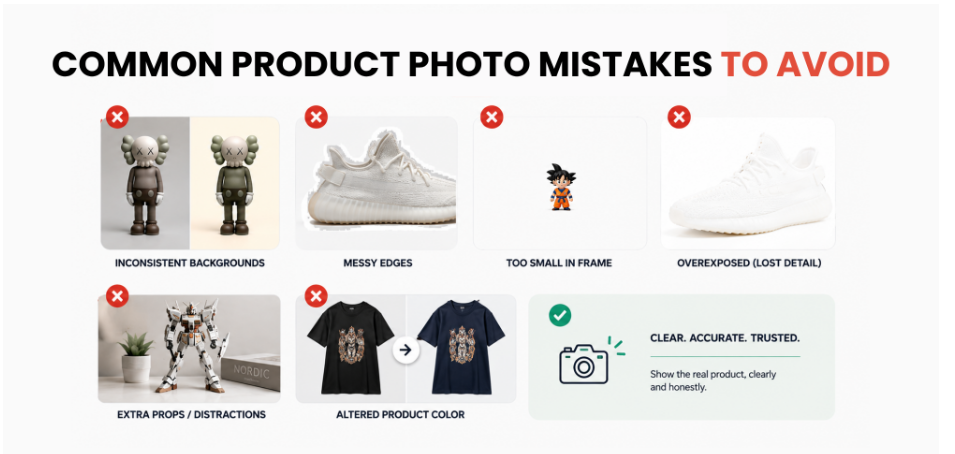
Common Product Photo Mistakes to Avoid
Even with a good tool, small details can weaken a listing. Watch out for:
- Different background shades for similar products
- Messy cutout edges
- Products that are too small in the frame
- Overexposed white items that lose detail
- Props in the main image when the marketplace requires a clean shot
- Color changes during editing that don’t match the real product
The last point matters most. A product image should sell the item without misleading anyone. If customers receive something that looks different from the photo, they’re more likely to return it, leave a poor review or avoid buying from you again.
Pros and Limitations
| Pros | Limitations |
|---|---|
| Fast, automatic cutouts with no manual tracing | Fine details like chains, straps and clear packaging may still need checking |
| Batch processing for large catalogs | Results depend heavily on the quality of the original photo |
| White, transparent or custom backgrounds | Shadows and depth may need extra adjustment to avoid a flat look |
A Simple Workflow for Sellers
Follow these steps each time you prepare product images:
- Photograph the product in good light.
- Upload the image.
- Remove the original background.
- Replace it with a white background.
- Check the edges and product details.
- Resize and frame the product consistently.
- Download the finished image.
- Upload it to your product listing or marketplace.
Once this becomes a habit, you’ll publish clear, accurate images faster and keep your catalog looking consistent.
Frequently Asked Questions
Why do marketplaces require white background product photos?
White backgrounds keep listings consistent and let shoppers focus on the product. Amazon, for example, requires the main image to have a pure white background with the product filling at least 85% of the frame.
Can AI remove backgrounds from product photos accurately?
For most products, yes. AI tools handle clear edges well, but details like straps, chains, clear packaging and reflective surfaces should still be checked before publishing.
Should every product image have a white background?
No. Use a white background for the main image, then add lifestyle and detail photos to show scale, context and how the product is used.
Conclusion: Make the Product Easier to Trust
White background images do more than look clean. They remove doubt from the buying decision.
When shoppers can see a product clearly, compare it easily and trust that the image matches what they’ll receive, they have one less reason to hesitate. Removal.AI speeds up the cutout part of that process, especially for sellers managing many listings, but the final check is still yours.
Start with a good photo, remove the distractions, keep the background clean and review every detail before you publish. In the end, the product should be the focus, and everything else should get out of the way.
