
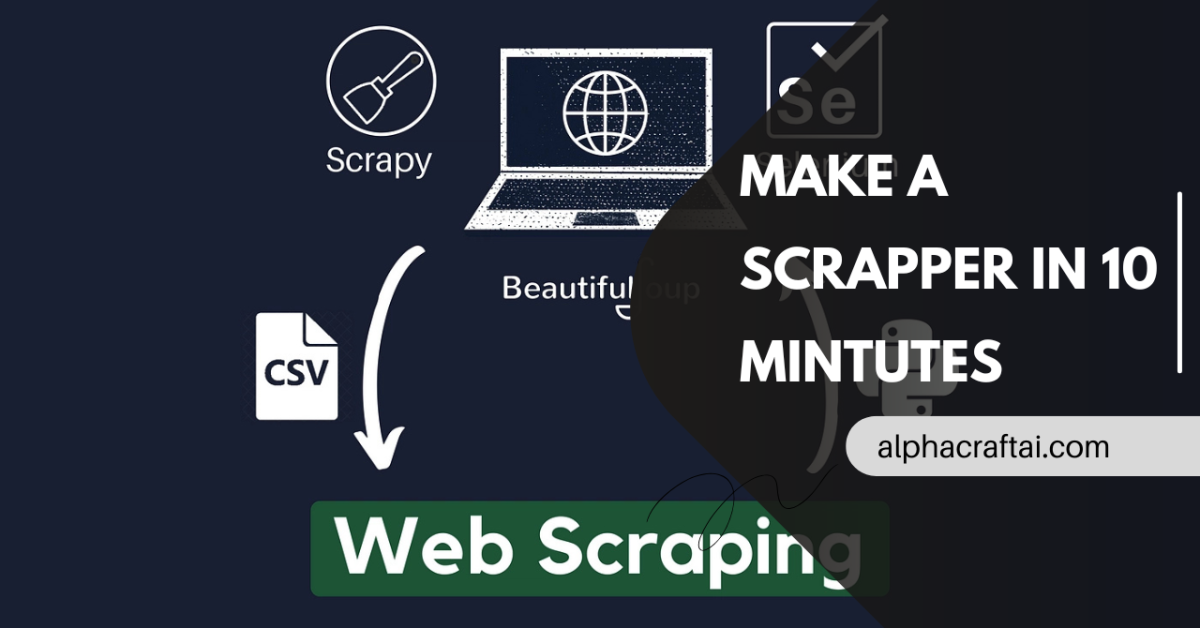
Web Scraping is the fastest way to turn a website into usable data when there’s no API, no export button, and no patience left for copy-paste. If you’ve ever wondered how to scrape information from a website or how to build a web scraper that actually works on real pages, this guide walks you through a practical first scraper in Python. You’ll fetch a page, parse it, extract the bits you care about, and save them cleanly.
What makes this “10 minutes” is not that scraping is shallow. It’s that the first working version is simple. The skill is learning what to look for and how to keep it from breaking.
What Is Web Scraping
Web Scraping is the automated extraction of data from web pages. Your script downloads a page’s HTML, finds the relevant elements, and pulls out text, links, numbers, or table rows.
It’s commonly used for tracking prices, monitoring content changes, collecting listings, and building datasets for analytics or machine learning.
How Websites “Hold” Data: HTML, CSS, JavaScript
When you visit a page, your browser renders HTML into what you see. A scraper usually works with the raw HTML structure, not the visuals.
If the content is present in the HTML response, you can scrape it with lightweight tools like Requests and BeautifulSoup. If the content loads after the page renders via JavaScript, the HTML you download might be missing the data and you’ll need a browser automation tool later.
What You Need to Start
For a first scraper, keep it simple.
Python 3
requests for downloading the page
beautifulsoup4 for parsing and extracting data
Install both with:
pip install requests beautifulsoup4
How to Web Scrape with Python: Your First Scraper in 10 Minutes
Step 1: Pick a Page You’re Allowed to Scrape
For learning and demos, it’s best to use a practice website designed for scraping. In this example, we’ll scrape a product-like page from Books to Scrape (a common scraping practice site) and extract the title, price, rating, and availability.
Step 2: Fetch the HTML
Your scraper starts by requesting the URL and collecting the HTML as text.
Step 3: Parse the HTML and Extract Fields
Then you locate the tags that contain the data. The easiest way to find them is browser DevTools: right-click a value on the page, choose Inspect, and note the tag and class.
Step 4: Print the Result
Once it works, you can save to CSV or a database. But printing a clean output is perfect for a first win.
Here’s the adjusted, article-ready code that matches the flow above and stays tightly relevant to “Web Scraping” and “how to scrape data from a website”.
import requests
from bs4 import BeautifulSoupdef get_html(url: str) -> str:
headers = {
“User-Agent”: “Mozilla/5.0 (compatible; FirstWebScraper/1.0)”
}
response = requests.get(url, headers=headers, timeout=20)
response.raise_for_status()
return response.textdef scrape_product_page(url: str) -> dict:
html = get_html(url)
soup = BeautifulSoup(html, “html.parser”)title_el = soup.find("h1") title = title_el.get_text(strip=True) if title_el else None price_el = soup.find("p", class_="price_color") price = price_el.get_text(strip=True) if price_el else None availability_el = soup.find("p", class_="instock availability") availability = availability_el.get_text(" ", strip=True) if availability_el else None rating_el = soup.find("p", class_="star-rating") rating = None if rating_el: classes = rating_el.get("class", []) if len(classes) > 1: rating = classes[1] return { "url": url, "title": title, "price": price, "availability": availability, "rating": rating, }if name == “main“:
url = “https://books.toscrape.com/catalogue/a-light-in-the-attic_1000/index.html”
data = scrape_product_page(url)print("Scraped data") print(f"Title: {data['title']}") print(f"Price: {data['price']}") print(f"Availability: {data['availability']}") print(f"Rating: {data['rating']}") print(f"URL: {data['url']}")
That’s a complete working scraper: it downloads the page, parses HTML, extracts targeted fields, and prints structured output.
How to Scrape Information from a Website Reliably:
A scraper is only as stable as its selectors.
Use specific selectors tied to meaning, not layout. A class like price_color is more stable than “the second paragraph inside the third div”.
Expect missing values. Real pages change. The code above checks for missing elements before reading text, which prevents your scraper from crashing the moment a page layout shifts.
Send a user agent. Some sites block unknown clients. A basic user agent reduces friction.
How to Scrape Data from a Website and Save It to CSV:
Printing is great for learning. Saving is where scraping becomes useful.
Here’s a small add-on that writes the extracted result to a CSV file. It plugs into the same scraper without changing the scraping logic.
import csv
data = scrape_product_page(url)
with open(“scraped_products.csv”, “w”, newline=””, encoding=”utf-8″) as f:
writer = csv.DictWriter(f, fieldnames=data.keys())
writer.writeheader()
writer.writerow(data)print(“Saved to scraped_products.csv”)
Static vs Dynamic Websites: The One Thing That Confuses Beginners
If you run your scraper and the page “looks empty”, it’s often a JavaScript-loaded site.
Static page means data appears in the HTML response, so Requests and BeautifulSoup work.
Dynamic page means data is injected after load, so your downloaded HTML can be missing the content. That’s when you switch to Selenium or Playwright, or you scrape the underlying network request the page makes.
A fast sanity check is View Page Source. If the text you want is not in the source, it’s probably dynamic.
Web Scraping vs APIs: When Scraping Is the Right Tool
If an API exists and gives you the data legally and reliably, use it.
Web Scraping becomes the practical option when there’s no API, the API is incomplete, or the data is only visible on the page. Many teams use both: API for stable fields, scraping for what’s missing.
FAQ’s
Slow down requests, send a realistic user agent, avoid scraping login-only content, and don’t hammer pages repeatedly. Treat websites like shared infrastructure.
Use DevTools Inspect on the exact text you want, then mirror that tag and class in BeautifulSoup. If the data isn’t in View Page Source, it may be JavaScript-loaded.
Price tracking for a few public product pages, collecting blog headlines into a CSV, or scraping a directory with pagination