

If you open Task Manager and see Antimalware Service Executable using a large amount of CPU, memory, or disk, you may wonder whether something is wrong with your PC.
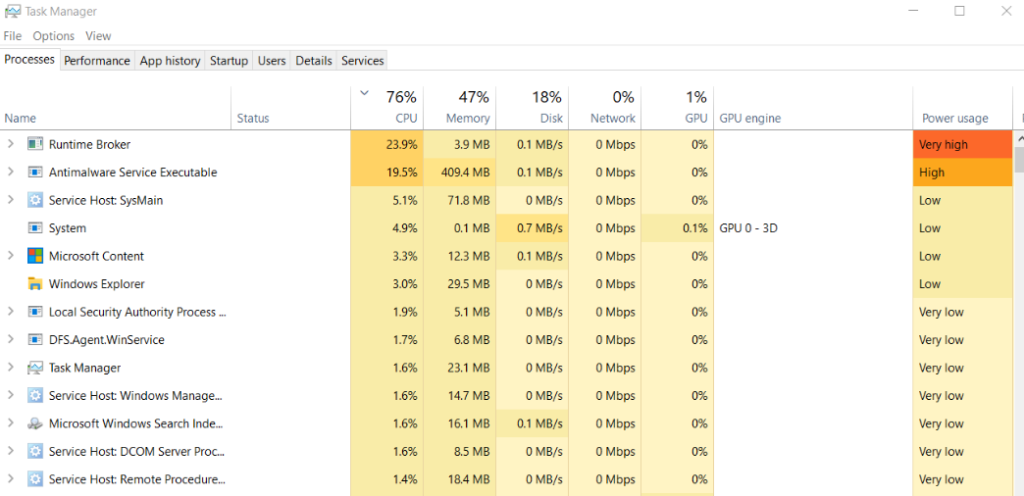
In most cases, it’s not malware. Antimalware Service Executable, also known as MsMpEng.exe, is a core process used by Microsoft Defender Antivirus to protect Windows against viruses, malware, spyware, and other threats.
Temporary spikes are normal while Defender scans files. But if the process keeps using a lot of resources for long periods, it’s worth finding out what’s triggering it.
In this article, you’ll learn what this process does, what the newer Antimalware Core Service is, how to check that the process is genuine, and how to reduce high CPU, memory, and disk usage step by step without weakening your PC’s security.
What Is Antimalware Service Executable (MsMpEng.exe)?
Antimalware Service Executable is the background process behind Microsoft Defender Antivirus, the antivirus built into Windows 10 and Windows 11. Its file name is MsMpEng.exe.
Defender protects your computer by watching files, apps, and downloads as you use them. This is called real-time protection. Because that protection never stops, the process stays visible in Task Manager even when you aren’t running a scan.
It handles jobs such as:
- Real-time malware protection
- Scanning files when you open or download them
- Scheduled antivirus scans
- Applying security intelligence updates
So seeing it in Task Manager is completely normal.
What Is Antimalware Core Service?
You may also see a second Defender process called Antimalware Core Service in Task Manager. Its file is MpDefenderCoreService.exe, and Microsoft calls it the Microsoft Defender Core service.
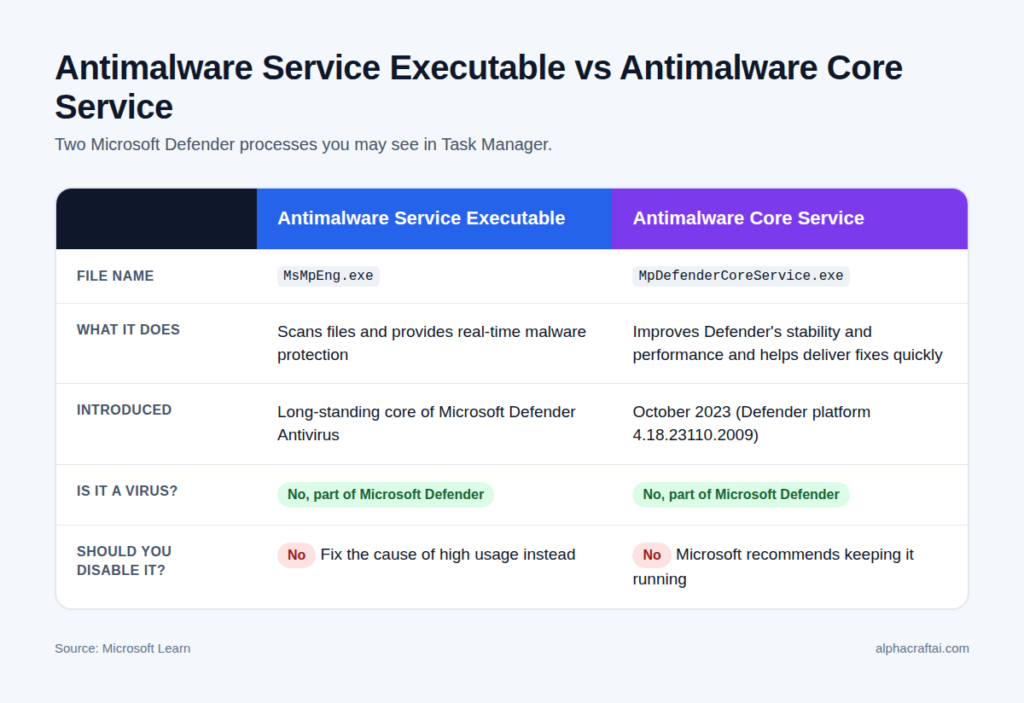
According to Microsoft, this service was introduced with Defender platform version 4.18.23110.2009 in October 2023. Its job is to improve the stability and performance of Microsoft Defender Antivirus. It also helps Microsoft deliver fixes quickly and collects data that helps identify problems such as slow performance and false positives.
Here’s the difference:
| Process | File | What it does |
|---|---|---|
| Antimalware Service Executable | MsMpEng.exe | Scans files and provides real-time protection |
| Antimalware Core Service | MpDefenderCoreService.exe | Supports Defender’s stability, performance, and fast fixes |
Microsoft strongly recommends keeping the Core Service running. Like the main process, it’s a legitimate part of Windows security.
Is Antimalware Service Executable a Virus?
No. The real process is part of Microsoft Defender Antivirus.
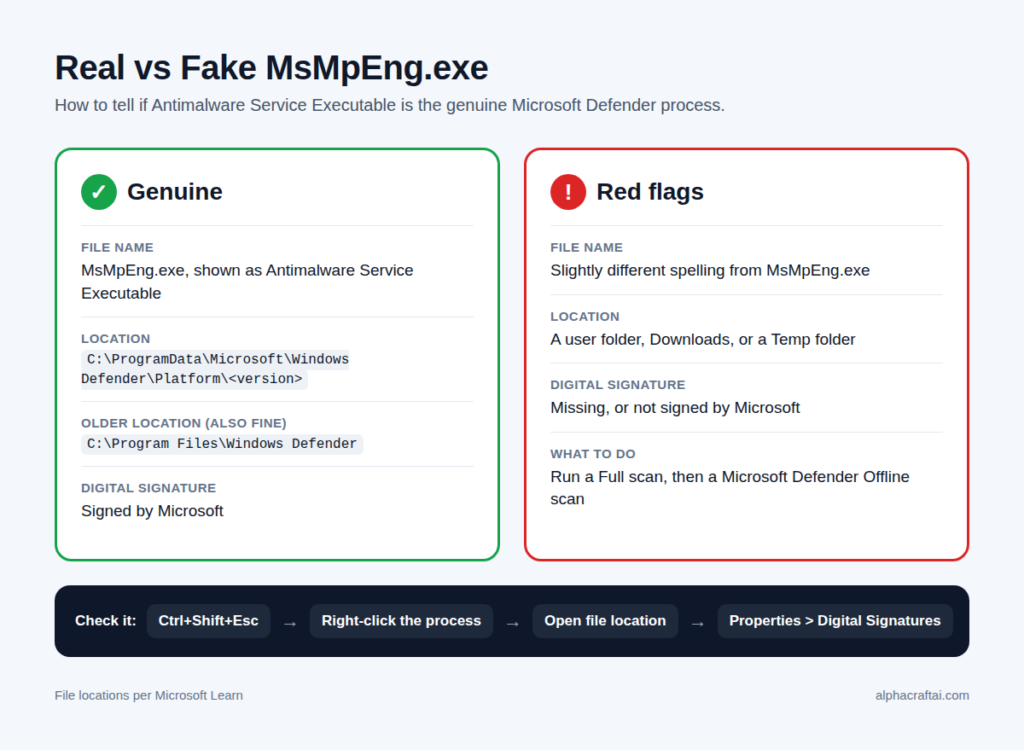
However, malware sometimes uses names that look like legitimate Windows processes to avoid suspicion. So if something seems off, it’s smart to check the file rather than assume it’s safe or delete it.
How to Check That MsMpEng.exe Is Legitimate
Here’s how to check in under a minute:
- Press Ctrl+Shift+Esc to open Task Manager.
- Find Antimalware Service Executable in the Processes list.
- Right-click it and select Open file location.
The real file normally lives in this folder, where <version> is a number such as 4.18.xxxx:
C:\ProgramData\Microsoft\Windows Defender\Platform\<version>On some systems, you may see the older location instead:
C:\Program Files\Windows DefenderMicrosoft lists both locations, so either one is fine. Be suspicious if the file sits in a user folder, a Downloads folder, or a temporary folder.
You can also check the file’s digital signature. Right-click MsMpEng.exe in that folder, select Properties, and open the Digital Signatures tab. The signer should be Microsoft.
If you’re still unsure, run a scan from Windows Security > Virus & threat protection > Quick scan. Don’t delete or modify system files just because the process is using a lot of resources. High usage on its own doesn’t mean the file is malicious.
Why Does Antimalware Service Executable Use So Much CPU?
The most common reason is simple: Defender is scanning.
A scheduled or manual scan can use a lot of processing power for a while, especially if your PC has many files. You’ll also notice more activity when:
- You download or open files
- You install or update apps
- You plug in a USB drive
- Windows installs security intelligence updates
- Large archives or folders are scanned
But a visible scan isn’t the only cause. Another app that creates, changes, or reads lots of files can trigger real-time scanning over and over. Development tools, build folders, sync apps, and large databases are common examples.
In that case, Task Manager shows MsMpEng.exe using the CPU, but the real cause is the other app’s file activity. That’s why simply trying to stop Defender rarely fixes the problem.
High CPU vs Memory vs Disk vs Power Usage

Resource problems don’t all look the same. Here’s how to read what you’re seeing:
| What you see | Likely cause | First thing to try |
|---|---|---|
| High CPU | An active scan or repeated real-time scanning | Check whether a scan is running |
| High memory | Defender processing a large scan or many files | Let the scan finish, then restart |
| High disk usage | Defender reading many files during a scan | Reschedule scans for idle hours |
| High power usage | Scanning while you work, especially on a laptop | Reschedule scans and limit scan CPU |
| Spikes when opening apps | App activity triggering real-time scans | Use Performance Analyzer |
| Constant high usage with no scan | A specific file, app, or setting | Follow the fixes below |
High Memory Usage
Defender holds information about the files it’s scanning in memory, so memory use climbs during large scans and drops afterward. If memory stays high for hours with no scan running, restart your PC, install updates, and then use Performance Analyzer (fix 6 below) to see whether one app keeps triggering scans.
High Disk Usage
Scanning means reading files from your drive, so disk activity rises during scans, especially full scans on a large hard disk. Moving scheduled scans to a time when you aren’t using the PC is the easiest fix, and it doesn’t reduce your protection.
High Power Usage
Task Manager’s Power usage column often shows the process as high while it scans, because scanning keeps the CPU busy. On a laptop, that means more heat, fan noise, and battery drain. Rescheduling scans and lowering the scan CPU limit (fixes 4 and 5 below) help the most.
How to See What’s Using Your Resources
To confirm the process is really the cause:
- Press Ctrl+Shift+Esc to open Task Manager.
- On the Processes tab, click the CPU, Memory, Disk, or Power usage column header to sort by it.
- Watch whether the Defender process stays at the top for a few minutes or only spikes briefly.
A brief spike is normal. Staying at the top for a long time while you’re idle is worth investigating.
Normal behavior: short spikes during scans, updates, installs, or big downloads.
Worth investigating: high usage that lasts a long time while your PC is idle and no scan is running, or that makes your PC noticeably slow every day.
How to Fix Antimalware Service Executable High CPU Usage

Start with the safest fixes and work your way down the list. You’ll often solve the problem in the first few steps.
1. Check Whether Defender Is Scanning
Open Windows Security > Virus & threat protection. The Current threats area shows recent scan activity.
If a scan is running, high CPU and disk use is expected. Let it finish, and the usage should drop on its own.
2. Restart Your PC
If the process stays busy with no scan running, restart Windows. A restart clears temporary glitches and lets pending updates finish installing.
Defender may be briefly active right after startup, so wait a few minutes before checking Task Manager again.
3. Update Windows and Microsoft Defender
Open Settings > Windows Update and install everything available. Then go to Windows Security > Virus & threat protection > Protection updates and check for the latest security intelligence.
Keeping both up to date gives you the latest fixes and the latest threat protection.
4. Reschedule Defender’s Scan
If scheduled scans keep running while you game, edit, or work, move them to a quieter time. Here’s how, using Microsoft’s steps:
- Search for Task Scheduler in the taskbar and open it.
- In the left pane, expand Task Scheduler Library > Microsoft > Windows, then select the Windows Defender folder.
- Double-click Windows Defender Scheduled Scan.
- Open the Triggers tab and select New.
- Choose how often and at what time the scan should run, such as late evening when you’re not using the PC.
- Click OK to save.
The goal isn’t to stop scanning. It’s to stop heavy scans from clashing with your busiest hours.
5. Limit How Much CPU Scans Can Use
Defender has a built-in setting that controls how much CPU a scan should use on average. According to Microsoft, the default is 50%.
To lower it, open PowerShell as administrator and run:
Set-MpPreference -ScanAvgCPULoadFactor 30You can use any value from 5 to 100. A lower number makes scans gentler on your PC but makes them take longer.
Keep two things in mind. Microsoft notes this is “not a hard limit,” just guidance for the scan engine. And it applies to scans, not to real-time protection.
You can also tell Defender to run scheduled scans only when your PC isn’t in use:
Set-MpPreference -ScanOnlyIfIdleEnabled $true6. Find What’s Triggering Scans with Performance Analyzer
If high CPU keeps happening and you can’t see a scan running, don’t guess. Microsoft’s Performance Analyzer shows you exactly which files, folders, file types, and processes are making Defender work hardest. It works on Windows 10 and Windows 11.
Here’s how to use it:
- Open PowerShell as administrator.
- Start a recording:
New-MpPerformanceRecording -RecordTo C:\defender-trace.etl- Do whatever normally causes the slowdown, such as opening the app or running the build.
- Go back to PowerShell and press Enter to stop recording.
- View the report:
Get-MpPerformanceReport -Path C:\defender-trace.etl -TopFiles 10 -TopProcesses 10 -TopExtensions 10The report lists the top files, processes, and file types that take the most scan time. If one app or folder dominates the list, you’ve found your real cause. For more options, see Microsoft’s Performance Analyzer guide.
7. Repair Windows System Files
Damaged Windows files can cause all kinds of odd behavior. Microsoft recommends two commands, run in order:
- Type cmd in the taskbar search box, right-click Command Prompt, and choose Run as administrator.
- Run this command and wait for it to finish:
DISM.exe /Online /Cleanup-image /Restorehealth- Then run:
sfc /scannowDon’t close the window until the scan reaches 100%. Restart your PC afterward.
8. Check for Another Antivirus
Running more than one real-time antivirus can cause conflicts. The good news is that Windows handles this for you. Microsoft says that if you install a compatible non-Microsoft antivirus, Microsoft Defender Antivirus automatically turns itself off.
If you’ve installed another security app and still see heavy Defender activity, check that the other app is active and up to date. You may also want to check one setting. Under Windows Security > Virus & threat protection > Microsoft Defender Antivirus options, there’s a Periodic scanning option. It only appears when another antivirus is installed, and Microsoft notes it uses only a small part of Defender and can’t detect most malware. If it’s on and you rely on your other antivirus, you can turn it off.
9. Scan for Malware
Even though the process itself is legitimate, unexplained activity is a good reason to scan your PC.
Go to Windows Security > Virus & threat protection > Scan options and run a Full scan.
If you suspect stubborn malware, choose Microsoft Defender Offline scan and select Scan now. Your PC will restart and scan in a special recovery environment, which takes about 15 minutes. Good habits matter too, so here’s how to protect your computer from viruses going forward.
10. Use Exclusions Only as a Last Resort
Many guides tell you to exclude MsMpEng.exe or the whole Windows Defender folder. Please don’t make that your first fix.
Microsoft’s own guidance is clear: “Add exclusions with caution. Exclusions… reduce protection for devices.” Microsoft also warns against excluding broad folders such as Program Files.
An exclusion makes sense only if Performance Analyzer points to a specific, trusted folder, such as a project folder that your build tools rewrite constantly. To add one:
- Open Windows Security > Virus & threat protection.
- Under Virus & threat protection settings, select Manage settings.
- Scroll to Exclusions and select Add or remove exclusions.
- Add only the specific folder you identified.
Exclude only what you understand and trust, and never exclude something just to make a CPU number drop.
Should You Disable Antimalware Service Executable?
Permanently disabling Defender just to save CPU is rarely a good idea. Without it, files you open or download aren’t checked in real time, which leaves your PC exposed to malware and ransomware.
You can turn off real-time protection temporarily in Windows Security > Virus & threat protection > Manage settings. This is useful as a quick test: if usage drops immediately, Defender’s scanning is the cause. But Microsoft says real-time protection “will turn back on automatically after a short while,” and scheduled scans keep running in the meantime.
You may also find older guides that recommend registry or Group Policy changes, such as setting DisableAntiSpyware. These no longer work on current Windows. Microsoft says DisableAntiSpyware is ignored on recent Defender versions, and Tamper Protection, which is on by default, blocks attempts to turn off real-time protection and other key settings.
Here are safer options:
| Option | Performance gain | Security risk |
|---|---|---|
| Reschedule scans | Good | Very low |
| Limit scan CPU | Good | Very low |
| Use Performance Analyzer and fix the cause | Very good | None |
| Targeted exclusion for one trusted folder | Good | Low |
| Install another trusted antivirus (Defender turns off) | Varies | Low if reputable |
| Disable Defender with no replacement | High | Very high |
Can You End Antimalware Service Executable in Task Manager?
Ending the task isn’t a reliable fix. MsMpEng.exe is part of Windows security, not an ordinary app you open and close.
Even if you could interrupt it briefly, you still wouldn’t know why CPU usage was high. Check for a running scan first, then use the fixes above to find the real cause.
Antimalware Service Executable on Windows 11 vs Windows 10
The process works the same way on both. It’s part of Microsoft Defender Antivirus on Windows 10 and Windows 11, and you’ll find the same Virus & threat protection settings in the Windows Security app on each. The menus look slightly different, but you don’t need separate fixes for each version.
Final Thoughts
Antimalware Service Executable is a legitimate Microsoft Defender process, and seeing it in Task Manager is normal. Short bursts of high CPU, memory, or disk usage usually just mean Defender is scanning.
When high usage sticks around, work through the fixes in order. Check for a scan, restart, update, reschedule scans, and limit scan CPU. If the problem continues, Performance Analyzer will show you what’s really triggering Defender.
The goal isn’t to stop Antimalware Service Executable. It’s to cut unnecessary resource use while keeping your PC protected.
Frequently Asked Questions
What is Antimalware Service Executable?
It’s the background process of Microsoft Defender Antivirus, the antivirus built into Windows. Its file name is MsMpEng.exe.
Is Antimalware Service Executable a virus?
No. The real process is part of Microsoft Defender. To be sure, right-click it in Task Manager, choose Open file location, and confirm it’s in a Windows Defender folder and signed by Microsoft.
What is Antimalware Core Service?
It’s the Microsoft Defender Core service (MpDefenderCoreService.exe), which Microsoft added in 2023 to improve Defender’s stability and performance. Microsoft recommends leaving it running.
Why is Antimalware Service Executable using so much memory?
Memory use rises while Defender processes scans, especially large ones. If it stays high with no scan running, restart your PC, update Windows and Defender, and use Performance Analyzer to find what’s triggering scans.
Why is it using high disk?
Defender reads files to scan them, which increases disk activity during scans. Rescheduling scans to idle hours usually reduces the impact.
Why is it using so much power?
Scanning uses CPU, and heavy CPU use drains battery and generates heat. Rescheduling scans and lowering the scan CPU limit both help.
Does Antimalware Service Executable need to be running?
Yes, if Microsoft Defender is your antivirus. It provides real-time protection. If you install another compatible antivirus, Defender turns itself off automatically.
Can I disable Antimalware Service Executable?
You can turn off real-time protection temporarily, but it turns back on automatically. Older registry tricks no longer work because of Tamper Protection. Fix the cause of high usage instead of removing your protection.
What is MsMpEng.exe?
MsMpEng.exe is the file name of the Defender process you see in Task Manager. It’s the main engine of Microsoft Defender Antivirus and handles real-time protection and scans.
Should I add MsMpEng.exe to the exclusion list?
Generally, no. Microsoft warns that exclusions reduce protection. Find the real trigger with Performance Analyzer first, and if you need an exclusion, make it a specific, trusted folder rather than Defender itself.
Does Windows 11 fix the high CPU problem?
Not by itself. Defender works the same way on Windows 10 and Windows 11, so the same fixes apply to both.
Is it safe to end Antimalware Service Executable in Task Manager?
It’s not a useful fix. The process is part of Windows security, and ending it doesn’t solve whatever is causing the high usage.
