
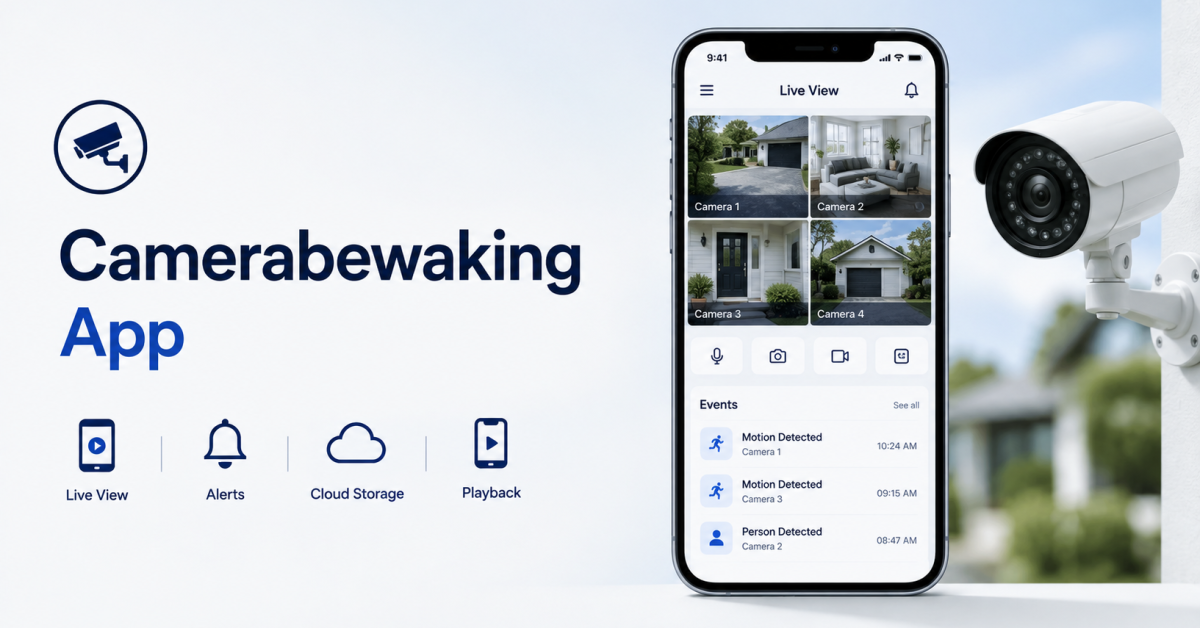
A security camera is only useful if you can see what it captures when it matters. That is where a camerabewaking app comes in. It connects compatible security cameras to your phone or tablet, giving you access to live video, motion alerts, recorded events, two-way audio, and—in newer systems—AI-powered detection.
There is one important point to clear up first: Camerabewaking is not the name of one specific app. The word is Dutch and translates to camera surveillance or CCTV. In practice, people searching for a “camerabewaking app” are generally looking for a mobile security-camera or video-surveillance app.
The right app depends less on the longest feature list and more on what you are protecting. A homeowner watching a front door has very different needs from a retailer monitoring several locations. This guide explains how camerabewaking apps work, the features that actually matter, the main options available, and when a custom surveillance app makes more sense.
What Is a Camerabewaking App?
A camerabewaking app is a mobile application used to remotely view, manage, and receive alerts from security cameras. Depending on the camera system, the app may provide live video, recorded-event playback, motion notifications, two-way communication, multiple camera views, storage controls, and intelligent event detection.
Think of the camera as the device collecting visual information and the app as the interface that makes that information useful.
When someone approaches a front door, for example, a modern system can detect the event, classify what triggered it, record a clip, and send a notification to the owner’s phone. The user can then open the app to view the camera or review the recorded event.
This applies beyond home security. Similar mobile surveillance systems are used in retail stores, offices, warehouses, rental properties, parking areas, and multi-location businesses.
How Does a Camerabewaking App Work?
Most systems follow the same basic flow:
Camera → Network → Processing/Storage → Mobile App → User
The camera captures video and connects through Wi-Fi, Ethernet, cellular connectivity, or a recorder/hub depending on the system. Footage may be processed locally, uploaded to cloud infrastructure, or stored on a microSD card, NVR, or dedicated hub.
The app communicates with that system so the user can access the camera remotely. When an event occurs, the system may also send a push notification rather than requiring someone to watch the live feed continuously.
For example, official Arlo setup documentation shows cameras being paired with the Arlo Secure app, connected to Wi-Fi, and configured to deliver security alerts to the mobile device.
Local vs. Cloud Connections
Not every camerabewaking system handles video the same way.
Local systems can store footage on a microSD card, NVR, DVR, or local hub. They can reduce dependence on recurring cloud-storage subscriptions and may provide more direct control over recordings.
Cloud-connected systems send footage or events through provider infrastructure. This makes remote access and off-site storage convenient because footage can remain available even if the physical camera or recorder is damaged or stolen.
Many modern systems combine the two approaches.
The better choice depends on whether you prioritize remote convenience, local control, storage redundancy, subscription cost, or privacy.
Features That Actually Matter in a Camerabewaking App
A long specification sheet can make two security apps look almost identical. In daily use, however, a smaller set of features determines whether the system is genuinely useful.
Reliable Live View
Live view should open quickly and remain stable enough to show what is happening around the property. Resolution matters, but reliability matters too. A high-resolution stream has limited value if it takes too long to load when an alert arrives.
For multi-camera installations, also look at how quickly the app lets you move between cameras and whether several locations can be managed from the same interface.
Useful Motion Alerts
Basic motion detection can trigger on shadows, trees, animals, headlights, and other irrelevant movement. Better systems let users define activity zones or use more advanced detection to decide which events deserve an alert.
The goal is not to receive more notifications. It is to receive fewer, more relevant notifications.
AI-Based Detection
AI is becoming one of the most important differences between basic camera apps and intelligent surveillance systems.
Instead of treating every movement equally, computer-vision models can help classify events such as a person, vehicle, animal, or package. Current Arlo materials, for example, describe object detection for packages, known people, and known vehicles.
This matters because classification gives the alert context. “Motion detected” tells you something moved. “Person detected at front door” gives you information you can act on.
Recording and Event History
Before choosing a camera system, check where recordings are stored and what remains available without a subscription.
Common options include:
- cloud recording
- microSD storage
- local hubs
- DVR/NVR storage
- combinations of local and cloud storage
Also check retention limits, event-history availability, export options, and whether important recording features require a paid plan.
Two-Way Audio
For doorways and entry points, two-way audio lets users hear and speak through compatible cameras. It can be useful for deliveries, visitors, property management, and other situations where viewing the camera alone is not enough.
Multi-Camera and Multi-Location Management
One camera is easy to manage. Ten cameras across several properties are a different problem.
Businesses should pay particular attention to dashboards, user roles, camera grouping, event search, access permissions, and whether several sites can be managed under one account.
Privacy and Account Security
A security camera can capture some of the most sensitive video associated with a home or business, so app security should be treated as a core feature.
Look for strong authentication options, encryption, controlled user access, a clear retention policy, regular software and firmware updates, and a straightforward way to revoke access when someone no longer needs it.
What Can You Use a Camerabewaking App For?
For homeowners, the most common use cases are straightforward: checking a front door, watching deliveries, monitoring a driveway, reviewing activity while away, or checking indoor and outdoor areas remotely.
The value becomes more significant for businesses.
A retail manager may need to review an event without returning to the store. A warehouse operator may want cameras covering loading areas and restricted zones. A property-management company may need controlled access to cameras across multiple locations.
In those environments, a camerabewaking app stops being simply a remote video viewer. It becomes part of a larger security and operational monitoring system.
Popular Types of Camerabewaking Apps
The market includes several different approaches, so there is no single “best” app for everyone.
| Type | Best Fit | Main Advantage | Main Consideration |
|---|---|---|---|
| Ecosystem apps | Homes already using one camera brand | Simple setup | Hardware dependence |
| Local-storage systems | Subscription-conscious users | More storage control | Remote features vary |
| Cloud-first systems | Easy remote monitoring | Convenient access | Recurring fees may apply |
| Professional security apps | Homes/businesses wanting monitoring | Broader security service | Higher ongoing cost |
| Old-phone camera apps | Basic monitoring | Reuses existing hardware | Less capable than dedicated cameras |
| Custom surveillance apps | Businesses with specialized requirements | Full workflow control | Requires development investment |
Popular consumer ecosystems include Ring, Arlo, Google Nest, eufy Security, Wyze, Blink, Reolink, and AlfredCamera.
Instead of ranking these purely by price, choose based on camera compatibility, storage, notification quality, AI capabilities, privacy, ecosystem compatibility, and the number of cameras you need to manage. Subscription plans and included features change frequently, so current pricing should always be confirmed directly with the provider before purchasing.
How to Choose the Right Camerabewaking App
Start with the hardware.
Many security-camera apps are built around their manufacturer’s cameras, so choosing an app independently of the camera can lead to compatibility problems. If you already own cameras, first confirm which apps and connection methods they officially support.
Next, decide what happens after the camera detects something. Do you only need a live notification, or do you need searchable recordings? Do you want local storage, cloud backup, or both? Do you need AI to distinguish people from vehicles or animals?
For a single home entrance, simplicity may matter most. For a larger property, reliable multi-camera management becomes more important. Businesses should go further and consider multiple user accounts, role-based permissions, auditability, integrations, event search, and multi-location management.
Finally, calculate the ongoing cost rather than looking only at the camera price. Features such as extended cloud history, advanced detection, or professional monitoring may require recurring plans.
Setting Up a Camerabewaking App
Setup varies by manufacturer, but consumer systems generally follow a familiar process.
First, install the official app and create an account using a strong, unique password. Add the camera using the manufacturer’s pairing process, which commonly involves a QR code or device discovery, and connect it to the appropriate network or hub.
Once the camera is online, configure the features that affect daily use: notification preferences, activity zones, recording settings, video quality, storage, and access for other authorized users.
Then test it rather than assuming the defaults are correct.
Walk through the monitored area during daylight and at night. Confirm that important motion triggers an alert, irrelevant movement does not generate constant notifications, the live feed opens reliably, and recordings can actually be retrieved when needed.
Privacy and Security: Don’t Treat the Camera Like a Normal App
A compromised game or productivity app is inconvenient. A compromised surveillance system can expose video from inside a home or business.
Use unique passwords and any additional account-security options supported by the provider. Avoid sharing one master login among family members or employees when the platform offers individual accounts or permission controls.
Businesses should also think carefully about who is being recorded, where cameras are pointed, how long footage is retained, and who can retrieve it. U.S. surveillance and audio-recording requirements can vary by state and situation, so organizations should verify the rules that apply to their location and use case rather than assuming one national rule covers every installation.
Privacy should also influence architecture. Sending every video frame to the cloud is not always necessary. Some computer-vision workloads can run on the camera, local hardware, or an edge device, allowing events to be classified closer to where the footage is captured.
How AI Is Changing Camerabewaking Apps
The biggest change in surveillance software is not simply higher-resolution video. It is the shift from recording everything to understanding what is happening in the video.
Traditional motion detection asks whether pixels changed. AI-powered computer vision can go further by identifying or classifying objects and events. That can help a system distinguish a person entering a restricted area from an animal crossing the same space, or identify a vehicle without alerting the user every time a tree moves.
For businesses, the opportunity goes beyond smarter notifications. Computer vision can support event search, occupancy analysis, restricted-area monitoring, object detection, and other workflows built around visual data. AlphaCraft AI already works with computer vision for image and video intelligence, automation, security, and visual-data analysis.
The important distinction is that AI should solve a specific surveillance problem. Adding facial recognition, predictive alerts, or dozens of detection classes is not automatically an improvement if the business only needs reliable person detection at a few entrances.
When an Existing Camera App Is Enough
For most homeowners, buying a well-supported camera ecosystem is more practical than building anything custom.
If you need a few cameras, standard alerts, live viewing, recording, and basic smart-home integration, existing products already solve the problem reasonably well. Custom software would add cost and complexity without providing enough additional value.
Small businesses with conventional security requirements may also be well served by commercial systems, particularly when all locations can use the same hardware and workflow.
The decision changes when the surveillance workflow itself becomes specific to the business.
When Does a Custom Camerabewaking App Make Sense?
Imagine a company operating warehouses across several states. Management does not simply want to watch cameras. It wants a single dashboard that can recognize particular events, send different alerts depending on severity, restrict each manager to specific locations, integrate incidents with existing software, and retain footage according to company policy.
That is no longer a standard consumer-camera problem.
A custom camerabewaking app can make sense when you need:
- specialized AI or computer-vision detection
- support for existing or mixed camera infrastructure
- custom alert and escalation workflows
- role-based access for teams
- multi-location dashboards
- integration with internal business systems
- specific data-retention or storage architecture
- analytics that commercial camera apps do not provide
A serious system typically involves more than a mobile interface. It may need video streaming infrastructure, secure authentication, camera/device management, push notifications, storage, APIs, logging, computer-vision models, and an administration layer.
For businesses that have validated such a requirement, AlphaCraft AI’s custom AI development services can be used to build AI systems around specific workflows and data environments rather than forcing those requirements into a consumer surveillance product.
Common Camerabewaking App Problems
- Delayed alerts are often more frustrating than imperfect video quality. Check the camera’s connection, phone notification permissions, background-app restrictions, and the manufacturer’s recommended settings. Official Arlo documentation, for example, specifically instructs users to ensure push notifications are permitted on the mobile device.
- A camera repeatedly going offline may point to power, Wi-Fi coverage, router configuration, or device issues. If the problem occurs only at one installation point, network coverage is worth checking before replacing the camera.
- Too many notifications usually means the detection configuration needs attention. Activity zones, sensitivity settings, schedules, and AI classifications can help reduce irrelevant events when supported.
- Missing recordings should be investigated before an incident occurs. Confirm whether the camera records continuously or only on events, where those recordings are stored, how long they remain available, and whether recording depends on an active subscription.
The Future of Camerabewaking Apps
Camerabewaking apps are moving from remote camera viewers toward intelligent video systems.
Computer vision can increasingly analyze events before a person opens the app, while edge processing can reduce the need to send every frame elsewhere for analysis. For businesses, this creates opportunities to connect video events with existing workflows instead of keeping surveillance isolated in a separate dashboard.
The useful future is not a camera that sends more alerts. It is a system that can better determine which events matter, who needs to know, and what should happen next.
Final Thoughts
A camerabewaking app is essentially a mobile interface for camera surveillance, giving users remote access to live video, alerts, recordings, and other security features. The term itself comes from Dutch, but the search intent is straightforward: people want better ways to monitor security cameras from their phones.
For homeowners, the best choice is usually the app designed for a reliable camera ecosystem that fits their storage, privacy, and smart-home needs. Businesses should look deeper at permissions, multiple locations, integrations, storage policies, and the quality of AI detection.
And when an organization needs the camera system to understand specific events or connect surveillance with its own operational workflows, that is where custom computer vision and AI development starts to offer value beyond an off-the-shelf camera app.
Frequently Asked Questions
1. Is Camerabewaking the name of an app?
No. Camerabewaking is a Dutch term for camera surveillance/CCTV, not the official name of one universal security application. “Camerabewaking app” generally refers to an app used to monitor and manage surveillance cameras.
2. Can I monitor security cameras from my phone?
Yes, if the camera system supports mobile remote viewing. Most modern connected security-camera ecosystems provide an official mobile app for live viewing, alerts, recordings, and device management.
3. Do camerabewaking apps work when I’m away from home?
Cloud-connected and remote-access camera systems generally allow users to view compatible cameras away from the local network as long as the camera system and mobile device have the required connectivity.
4. Do I need to pay monthly for a security camera app?
Not always. The app itself may be free while particular services—such as cloud recording, extended history, advanced AI detection, or professional monitoring—require a subscription. Check the current provider plan before choosing hardware.
5. Can AI reduce false security-camera alerts?
It can help. AI-based object classification can distinguish categories such as people, vehicles, animals, or packages on supported systems, allowing alerts to be filtered more intelligently than basic motion detection.
6. Can a business build its own camerabewaking app?
Yes. A custom system can combine camera streaming, secure user access, recording, notifications, computer vision, multi-location management, and integrations with existing business software. Custom development is most useful when standard surveillance platforms cannot support the organization’s required workflow.
7. Is local or cloud camera storage better?
Neither is universally better. Local storage provides more direct control and may reduce subscription costs, while cloud storage offers convenient remote access and an off-site copy. Some systems combine both approaches.
8. What should I check before choosing a camerabewaking app?
Prioritize camera compatibility, reliable live viewing, alert quality, storage options, privacy and account security, AI detection, multi-camera management, and ongoing subscription costs. For businesses, also evaluate user permissions, integrations, auditability, and multi-location support.
