

It usually happens at the worst possible moment. You open Outlook, and instead of your inbox you get a sync error. Maybe the Exchange server crashed overnight. Maybe IT retired it months ago and nobody told you. Either way, years of email now sit in a single OST file on your hard drive, and Outlook won’t let you touch it.
Here’s the good news: you can convert OST to PST when Exchange Server is unavailable. If Outlook still opens the mailbox, its own built-in export tools will do the job for free. If it doesn’t, you’ll need a dedicated OST to PST converter which works without Exchange or even Outlook.
This guide walks through each method step by step, explains when each one works, and helps you choose the safest option for your situation.
When Do You Need to Convert OST to PST Without Exchange?
You may need to convert OST to PST when your Exchange Server crashes or becomes unavailable, preventing Outlook from syncing with your mailbox. The same situation can occur when your organization decommissions its Exchange Server or migrates to a new platform, leaving old OST files behind. If an employee’s mailbox is deleted or disabled, the OST file may still contain important emails and other mailbox data.
Similarly, resetting or deleting an Outlook profile can leave the OST file orphaned and inaccessible through Outlook. OST synchronization errors can also prevent you from accessing the latest mailbox data. Finally, if you’re moving to a new computer, converting the OST file to PST allows you to transfer the available mailbox data and access it through Outlook on the new system.
Methods to Convert OST to PST When exchange Server is Unavailable
Below are the common methods that you can use to convert OST files. Before picking a method, check if Outlook still open mailbox, then start with Method 1. Otherwise skip straight to Method 3.
Method 1: Export OST to PST Using Outlook’s Import/Export Wizard
This free method works only if you’re on the original computer and Outlook still opens your mailbox in cached mode. Outlook reads the data straight from the OST, so the server doesn’t need to be online.
- Open Outlook and go to the Send/Receive tab. Click Work Offline so Outlook stops trying to reach the server.
- Go to File > Open & Export > Import/Export.

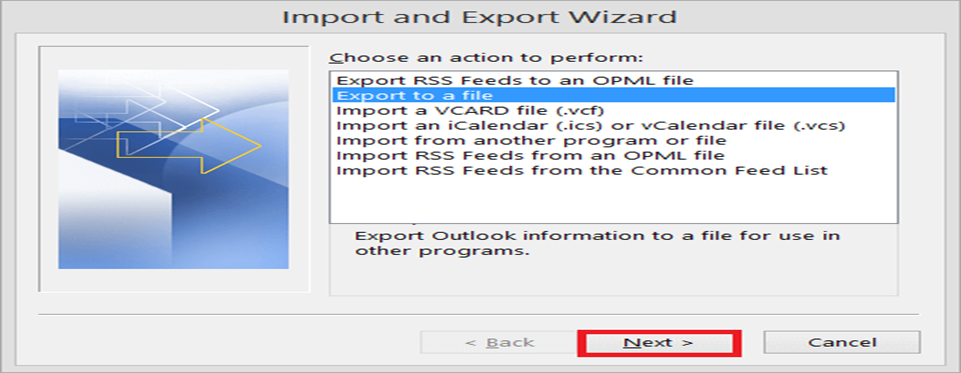
- Select Export to a file and click Next.
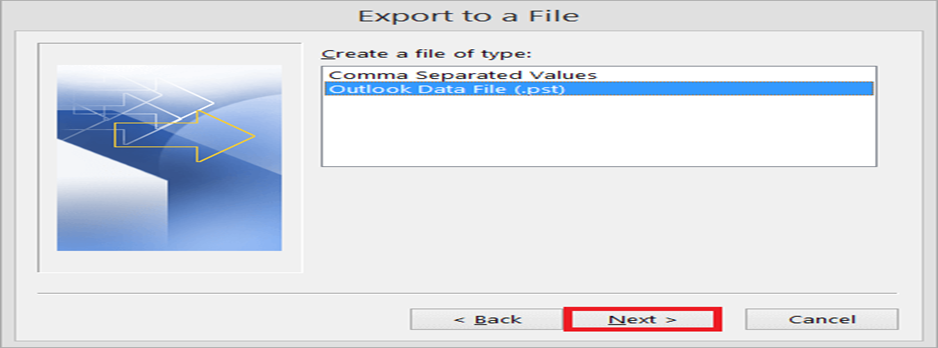
- Choose Outlook Data File (.pst) and click Next.
- Select your mailbox and tick Include subfolders.

- Choose a save location and a duplicate-handling option, then click Finish.

Tip: In some Exchange setups, the Export option is greyed out or blocked by group policy. If that happens, use Method 2.
Method 2: Drag and Drop Mailbox Folders Into a New PST
This workaround also needs Outlook to open the OST, but it bypasses the export wizard entirely.
- In Outlook, go to Home > New Items > More Items > Outlook Data File.
- Name the new PST file and save it. It appears in the folder pane.
- Right-click each mailbox folder and choose Move Folder or Copy Folder to the new PST. You can also select emails and drag them across.
- Repeat for Calendar, Contacts, and Tasks.
- Close Outlook, then back up the PST to an external drive or cloud storage.
This method is reliable for small mailboxes but becomes tedious when you have dozens of folders. Default folders such as the Inbox can’t be moved as a whole, so you’ll need to copy their contents instead.
Limitations of the Manual Methods
Outlook’s built-in options are free, but they fail in exactly the situations where people need help most:
- They don’t work on orphaned OST files. If the profile was deleted, the mailbox removed, or the file moved to another PC, Outlook won’t open it.
- They depend on a healthy OST. A corrupted or oversized OST can freeze Outlook or stop the export midway.
- They’re slow for large mailboxes. Exporting 20 GB or more can take hours, and drag-and-drop is error-prone.
- They need Outlook installed. You can’t use them on a machine without Outlook.
- Export may be restricted. Some organizations block PST export through policy.
When any of these apply, a professional OST to PST converter is only practical option.
Method 3: Convert OST to PST With Stellar Online OST Converter
If the original Exchange Server is unavailable and Outlook cannot open the OST file, you can try Stellar Online OST Converter. This cloud-based service is designed to convert OST files into PST format without requiring a connection to the original Exchange Server which makes it a direct fit for this problem.
Key features
- Real-Time Progress Tracking – Track upload, conversion, and download progress on files in real-time.
- No Data Retention For User Privacy – Strict compliance with privacy regulations as data is deleted after conversion.
- No Exchange Server Connection Required – Perform OST file conversion even when Exchange Server is unavailable.
- No Software Installation Needed – Convert files directly online – no need to download or install a software.
- Privacy-focused processing – OST files are uploaded using SSL encryption and converted into a fully automated environment with no human touchpoints. Files are permanently deleted
Step to convert OST to PST online in 3 steps
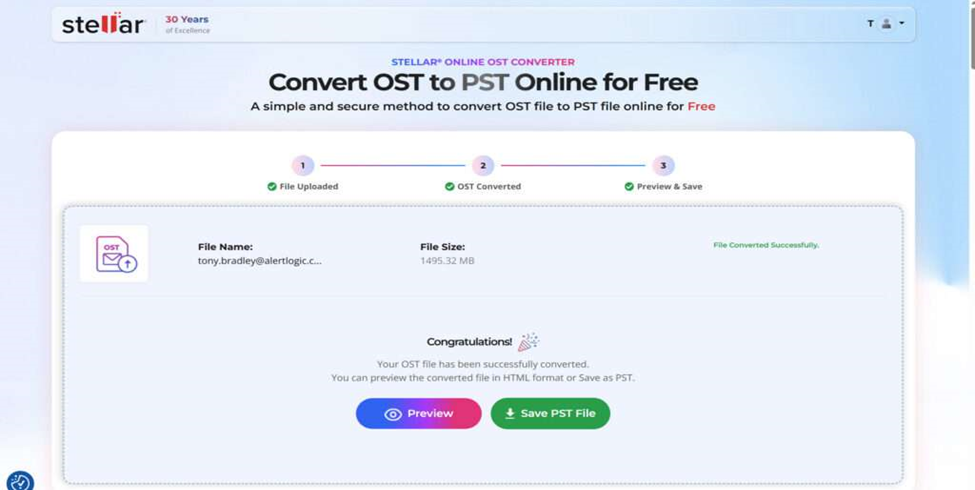
- Visit Online OST to PST converter by Stellar and upload the OST file from your computer.

- The tool processes the file automatically. Most files are ready in about 15 minutes.

- Review the converted folders, then download the PST file to your system.
Note: Once you have the PST, open it in any Outlook installation via File > Open & Export > Open Outlook Data File, or import it into a new mailbox.
For IT teams handling multiple OST files or larger Exchange mailboxes, the desktop version – Stellar Converter for OST can be a more convenient choice, especially when you want greater control over how your mailbox data is handled.
Conclusion
An unavailable Exchange Server doesn’t mean your mailbox is lost. If Outlook still opens your data, the Import/Export wizard or a quick drag-and-drop gets your emails into a PST for free. If the OST is orphaned, the profile is gone, or Outlook isn’t installed, a dedicated OST to PST converter is the fastest route and recover your mailbox without an Exchange connection.
Frequently Asked Questions
Can I open an OST file without Exchange Server?
Only on the original computer with the original Outlook profile, in offline mode. On any other machine, or after the profile is deleted, you need to convert the OST to PST first.
Can I convert OST to PST without Outlook installed?
Yes. Outlook’s manual methods need Outlook, but tools like Stellar Online OST Converter run in the browser and need neither Outlook nor Exchange.
Is it safe to convert OST to PST online?
It depends on the provider. Choose a well-known vendor that uses encrypted uploads and deletes files after conversion. Stellar states that files are removed from its servers within 24 to 48 hours.
Will I lose any data during conversion?
A reliable converter preserves emails, attachments, contacts, calendars, and folder structure. However, items that never synced to the OST before the outage can’t be recovered.
Can I convert an orphaned OST file for free?
Yes, if it’s under 500 MB. Stellar’s free online plan converts one OST file up to that size at no cost.
How long does OST to PST conversion take?
Most files convert in about 15 minutes online. Very large mailboxes take longer, depending on file size and internet speed.
