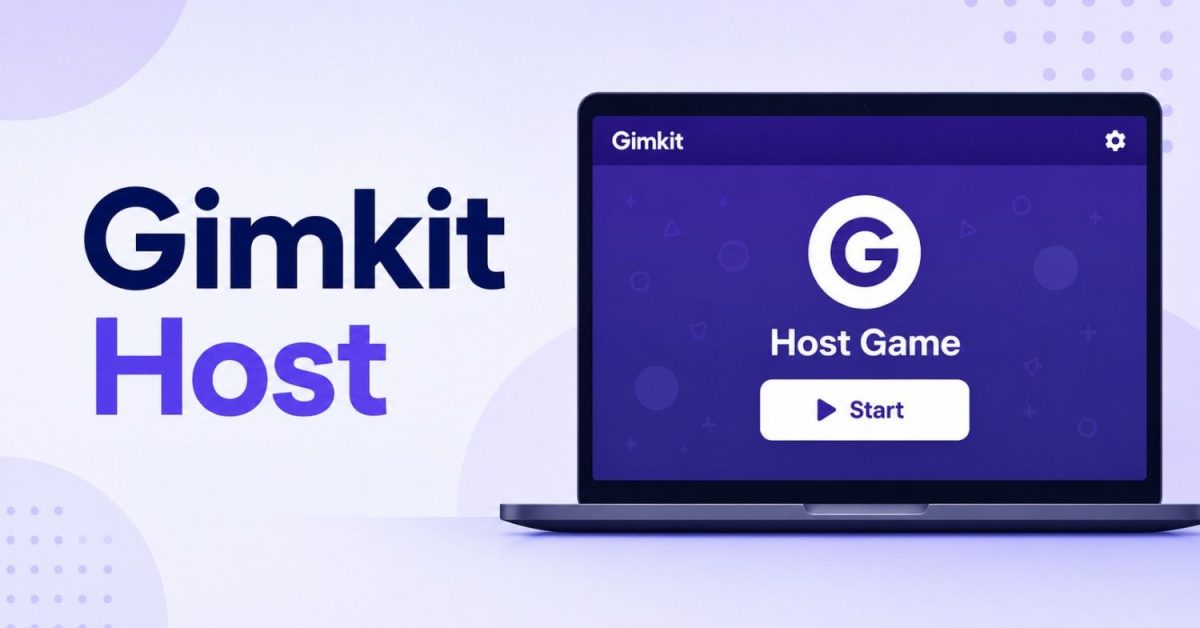
To host a Gimkit game, log into your Gimkit account, pick a kit, click Play Live, choose a game mode, adjust the game options, and click Continue. A lobby opens with a game code, and your students join at gimkit.com/join by typing that code, scanning the QR code, or clicking your shared link. Click Start Game and the session begins. The whole process takes under two minutes once your kit is ready.
That is the quick version. This guide covers the full hosting process, the settings that make games actually work well, what hosting costs, and a question most guides skip entirely: whether students can host games themselves.
What Does Hosting Mean in Gimkit?
Gimkit is a classroom game platform where students answer quiz questions to earn virtual cash, then spend it on power ups and upgrades while competing or cooperating in game worlds. The host is the person running the show: they choose the questions, pick the game mode, control the settings, and manage the live session from their screen.
Hosting is more than pressing start. You control the game’s economy, its ending condition, who can join, and what happens when things go sideways, which is why knowing the host tools separates chaotic sessions from great ones.
How to Host a Gimkit Game: The Full Steps
Step 1: Get a kit ready. A kit is your question set, and you have four ways to build one: write questions manually, import them instantly by pasting a Quizlet link or uploading a CSV file, borrow from the Discovery library of educator made kits, or use Kit Collab, which lets your students submit questions that you approve before the game. A useful modern shortcut: AI assistants generate solid quiz questions from any study material in seconds, ready to paste into a CSV, and our Grok vs ChatGPT comparison covers which assistant handles tasks like this best.
Step 2: Click Play Live and pick a mode. The Mode Picker shows all available modes, with a Learn More button on each. Your selection gets a yellow outline, then you click Continue.
Step 3: Set your game options. Every mode has standard options plus its own specific ones. The standard set includes your game goal (a time limit, cash target, or number of questions), whether to connect a class roster, late joining on or off, and the Nickname Generator, which assigns safe random names so nobody enters something inappropriate.
Step 4: Share the code from the lobby. A lobby tab opens showing a game code. Students go to gimkit.com/join and enter it, or you can hover over the code to display a QR code for scanning, or click the code to copy a direct join link. If you use Gimkit Classes, rostered students join instantly without typing anything.
Step 5: Start and manage the game. Click Start Game. During play, the host panel gives you music and sound volume, the leaderboard display, a player list where you can remove anyone, and an End Game button. You can even click the remaining time to add minutes, up to 59 total. In 2D modes, you choose whether to join as a player yourself or watch as a spectator, and the 2026 interface is fully responsive, so you can host and monitor from a tablet or phone while walking the room.
Which Game Mode Should You Host?
Gimkit has grown to roughly two dozen modes, and they fall into three practical families:
- Classic modes are straightforward quiz competition with the cash and power up economy. Best for quick warm ups and any group new to Gimkit.
- 2D adventure modes are the crowd favorites: students control small avatars called Gims inside game worlds. Highlights include Don’t Look Down 2, the vertical climbing sequel new for 2026, One Way Out, a cooperative escape through a ship where the whole class shares one finish line, Snowbrawl, and Trust No One, the social deduction mode where hidden impostors must be voted out while everyone answers questions.
- Creative mode hands the map building to you or your students: up to 60 players can collaborate on custom maps, and a large community library of finished maps is free to browse.
A practical host rule: match the mode to your time. Classic fits a 5 minute warm up. The 2D modes need 15 to 30 minutes to shine, and cooperative modes like One Way Out work best when you have a full class period.
Host Settings That Make or Break the Game
Experienced hosts treat the game options screen as their real control panel. Three adjustments matter most:
- Starting cash: for short games, give students $50 to $100 so the fun starts immediately. For full period sessions, start at zero and let the economy build.
- Shop prices: if students obsess over sabotage power ups instead of answering questions, raise the price of attack items and the problem solves itself.
- Late join and elimination rules: keep late joining on for real classrooms, since someone’s Chromebook always dies, and prefer settings that let eliminated students keep playing, because a bored eliminated student becomes a classroom management problem.
What Does Hosting Gimkit Cost?
| Plan | Price | What Hosts Get |
|---|---|---|
| Basic (free) | $0 | Unlimited players on about 3 rotating free modes, classes, and reports. Pro modes launch but cap at 5 players |
| Gimkit Pro | $14.99 monthly or $59.88 per year | Every mode with no player cap, Assignments homework feature, image and audio in questions |
| Department | $650 per year | Pro for up to 20 teachers |
| School | $1,000 per year | Pro for all teachers in one school |
Two money saving facts: every new educator account automatically gets a 14 day Pro trial with no card required, and the annual plan at $59.88 costs less than just four months of monthly billing, so anyone planning to host all year should never pay monthly. The free tier’s real limitation is that the beloved 2D modes sit behind the 5 player cap, which makes them unusable for actual classes without Pro.
Can Students Host Gimkit Games?
Here is the answer most guides never give. Traditionally, hosting required an educator account. But as of 2026, Gimkit’s Season Ticket lets students and other non Pro users host private Play with Friends sessions for up to 15 players. So yes, students can now host small games with friends, while full classroom hosting with big player counts remains educator account territory. For classroom use, a smart middle path is Kit Collab, which gives students ownership of the questions while the teacher keeps host control.
Quick Troubleshooting for Hosts
- 2D modes won’t load: they require WebGL, so enable it in the browser or update Chrome, a common blocker on locked down school devices.
- Lag and freezing mid game: almost always network congestion, since every added player raises the connection demand. Fewer simultaneous games on school Wi-Fi helps more than anything.
- Inappropriate names: switch on the Nickname Generator before the game rather than kicking students mid session.
- Game ended too fast: your cash goal was too low for the class size. Raise the goal or switch the ending condition to a time limit, which you can extend live.
Frequently Asked Questions
How do I host a game on Gimkit?
Log in, choose a kit, click Play Live, select a game mode, set your options, and click Continue. Share the game code from the lobby, have students join at gimkit.com/join, and press Start Game.
Is hosting Gimkit free?
Yes, with limits. The free Basic plan hosts unlimited players on about three rotating modes. The popular 2D modes cap at 5 players on free accounts, so full class use of those requires Pro at $59.88 per year.
How do students join a hosted Gimkit game?
Three ways: entering the game code at gimkit.com/join, scanning the QR code the host displays by hovering over the game code, or clicking a shared join link. Students in connected Classes join instantly.
Can a student host a Gimkit game?
Yes, in a limited way. With Gimkit’s Season Ticket, students can host private Play with Friends games for up to 15 players. Full classroom hosting still requires an educator account.
How many players can join a hosted game?
There is no fixed cap on paid plans; the practical limit is network quality, since more players demand a stronger connection. Free accounts are capped at 5 players on Pro exclusive modes.
What is the best Gimkit mode to host first?
Classic. It teaches the core answer and earn loop with zero learning curve. Once the group knows the basics, the 2D modes like Don’t Look Down 2 and One Way Out deliver the most engagement.
