
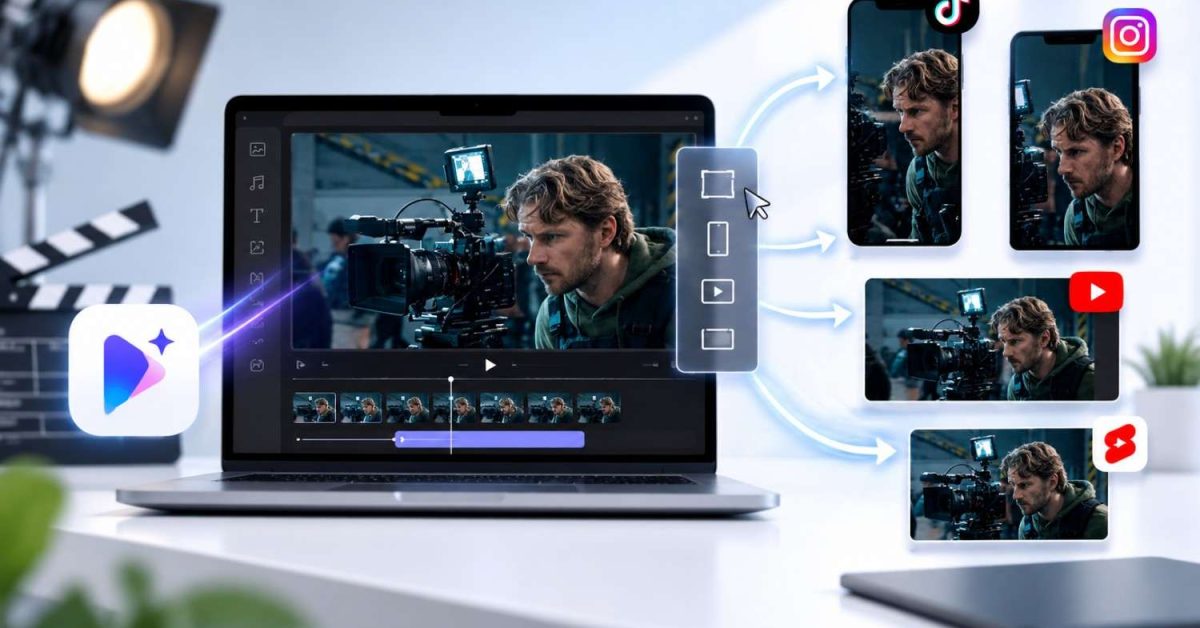
One video doesn’t necessarily work on every social platform or publishing platform. When changing dimensions, remember that composition, captions, focal points, and viewer experience also change. When converting a landscape shot to a portrait, it can lose some valuable information. Pippit offers AI-generated video creation and also provides practical video editing features, enabling creators to adapt videos for various publishing applications. Each version can retain the overall message and be effective, with careful planning.
Why Video Resizing Matters Across Digital Platforms
Each platform has its own preferred direction, arrangement, and usage. Vertical videos are ideal for a mobile-first experience, and landscape videos can enable broader visual storytelling. Square sizes can offer even compositions in some shots and placements. Wrong sizes can cut off subjects, make captions difficult to read, or leave too much room. Effective resizing doesn’t just shrink or stretch footage, but preserves the central visual message. This adapts to platforms an important part of the production stage, not an afterthought. Pippit’s AI video generator workflow can assist with format planning, generation, and editing, which helps to ensure stronger video compositions across destinations.

Plan Aspect Ratios Around Audio and Visual Timing
The aspect ratio determines the shape of a video frame, whether it’s wide or tall, which impacts composition, captions, and subject positioning. Resizing may involve more than just adjusting canvas size, depending on the type of format – portrait, landscape, or square. When adapting a video, think about how the dialogue, sounds, music, and timing of scenes will enhance the adapted framing. SeedAudio 1.5 can be used to create dialogue, ambience, effects and music, and offers timestamp placement and video-aware audio generation. These elements can be planned for in conjunction with aspect ratio to ensure continuity of story, focus points, and on-time sound across the various platform-specific versions.

Build Flexible Scenes for Different Viewing Formats
A good resizing begins with a good source composition, one that can resize without discarding much of the picture. Do not place any important subject, product, or graphics too close to a weak edge, and allow ample clearance for various crops and framing options. Consider how scenes, camera angles, and spatial relationships could be different when transitioning between portrait, landscape, and square. Seeworld is a more general 3D world-model concept based on environments, spatial relationships, viewpoints, and scene planning. Using the same spatial thinking when making the video can help you plan for “flexible” compositions, experiment with camera directions, and make platform-specific versions without compromising the visual hierarchy.
Steps to Learn to Resize for Any Platform Using Pippit’s AI Video Generator
Step 1: Set your platform requirements
- Sign up for Pippit with your Google, TikTok, or Facebook account info.
- Open “More” on the left vertical menu bar and click “Video generator”.
- Select an AI model, such as Dreamina Seedance 1.0, Dreamina Seedance 2.0, Dreamina Seedance 2.0 Fast, Dreamina Seedance 2.0 Mini, or Dreamina Seedance 2.5.
- Enter a detailed text prompt describing your desired video.
- Select the video length, language, subtitles, and “aspect ratio” for your target platform.
- Click “+” to upload reference images or videos from your device, phone, Dropbox, or a link. You can also select assets without reference media.
- Click “Generate” to create the video.
Step 2: Review the generated layout
- After clicking “Generate,” Pippit’s AI video generator creates a video from your prompt and reference media.
- The AI handles transitions, pacing, captions, avatars, voice, lyrics, and visual enhancements.
- Review the video draft for framing and overall presentation.
Step 3: Adjust and export
- Click “Download” to save the video. Select “Regenerate” for another version or “Edit more” below the video for further customization.
- Edit captions, add text, and adjust size, color, alignment, filters, and effects.
- Add background music, remove backgrounds, and fine-tune the visuals.
- Click “Export” in the top right corner when ready.
- Select “Publish” for TikTok, Instagram, or Facebook, or choose “Download” to save it with your preferred format, resolution, frame rate, and quality.
Resize Without Losing the Video’s Visual Hierarchy
Before altering the video size, determine its main theme. Automatic cropping may strip away some significant picture detail that is close to the original frame edges. Move text, graphics, and supporting elements based on canvas changes. Maintain the use of focus points in all the adapted versions. Even if you have resized a composition, it should still lead viewers to the desired message. Check the beginning – a good first impression is based on clarity of the first impression. Also look at the end – cropping can result in a change in the final text, product, or call-to-action. After resizing, Pippit’s editing controls make it easier to adjust framing to make sure that key elements are still there.
Make Captions Work in Every Format
The placement of text varies greatly between portrait, landscape, and square formats. A caption that is properly placed in one form of output may be too close in another. The size, alignment, spacing, and contrast of the font are all factors that affect readability. Make sure that you have enough space between text and other visual elements. Captions should also steer clear of regions that are often used for platform interface elements. Pippit’s editing controls enable manual text placement and presentation after resizing. Go through all the scenes, as some shots might need to have the caption in a different place. Closed captioning enhances accessibility and aids viewers in understanding content when watching a video without audio.
Create Platform-Specific Versions From One Core Video
Adaptation is typically more effective than imposing a single composition across the board. Use original narration and make changes to the framing for each destination. Other publishing situations might also benefit from the shorter versions and faster pacing. Adjust background, captioning, and visual emphasis when different layout needs to be changed. Use the same logos, typography, colors, and language in versions when necessary. Pippit can assist with this process via generation, editing, and export controls—that way, one idea can be used in more than one publishing environment without compromising visual clarity.
Final Resize Checklist Before You Export
Before exporting, review the following points:
- Check the aspect ratio and overall framing.
- Make sure to keep faces, products, graphics, and focal elements visible.
- Look through all the captions for placement, contrast, and readability.
- Make sure that transitions and scene changes remain natural.
- Check audio and video quality, resolution, and frame rate.
- Don’t check individual frames; watch the whole thing in a smaller size.
This final review will help to detect issues that may have been created while cropping or repositioning the tree. Minor changes can make a major impact on the final product’s look on the platform it’s targeted for. Pippit’s export controls also enable the final file settings to be identical to the desired publishing environment.
Conclusion
Resizing is effective to maintain storytelling while tailoring the visual presentation to each destination. Changes in dimensions should maintain the focal points, readability of captions, and original visual hierarchy. Pippit is able to generate, resize, edit, and export in a single workflow. Plan compositions in a flexible manner and check all adjusted versions. Specific platform tweaks can be beneficial for each video to make it feel like it was made for that platform.
