
Every time you open a new tab in Google Chrome, you see the same short line of text inside the search box: “Search Google or type a URL.” Most people read past it without a second thought. Yet that small prompt explains how the modern web works. It tells you that one box can do two different jobs. You can type a question and search Google, or you can type a web address and go straight to a website.
Knowing when to search and when to type a URL can save you time, protect your privacy, and help you avoid fake websites. It also explains why your browser sometimes searches when you wanted to open a site, why suggestions appear before you finish typing, and why your settings may change without your permission.
In this guide, you will learn what “Search Google or type a URL” means, how your browser decides what to do with what you type, which option is better in different situations, and how to fix the most common address bar problems in Chrome, Firefox, Edge, and Safari.
What Is “Search Google or Type a URL”?
“Search Google or type a URL” is the placeholder text Google Chrome shows in its search box before you type anything. It is not an error, a warning, or an ad. It is simply a hint that tells you the box accepts two kinds of input:
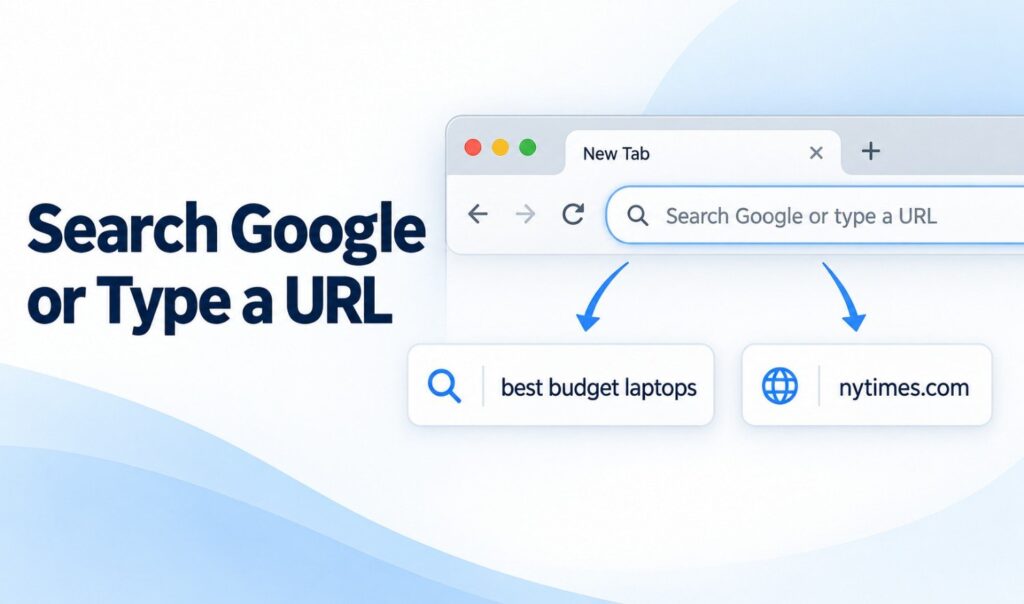
- A search query, such as “best budget laptops for students”
- A web address (URL), such as “nytimes.com”
The exact wording changes depending on where you see it and which search engine you use. Chrome’s own source code shows several versions of this prompt:
- Chrome on desktop (address bar): “Search [search engine] or type a URL.” If Google is your default search engine, it reads “Search Google or type a URL.” If you switch to Bing, the name changes with it.
- Chrome’s New Tab page search box: “Search Google or type a URL.”
- Chrome on Android and iPhone: “Search Google or type URL” (without the word “a”), or simply “Search or type URL.”
- Newer versions of Chrome: “Ask Google or type a URL.” This version reflects Google’s push toward AI-powered answers in the browser, which we cover later in this guide.
Other browsers use similar wording. Firefox, for example, shows “Search with Google or enter address” when Google is the default, or “Search or enter address” in other cases. This is why people search for many variations of the same phrase, such as “search or type URL,” “search or enter address,” “search or enter website name,” and “search or type web address.” They all describe the same idea: one box for both searching and browsing.
What Is an Omnibox?
The box that shows “Search Google or type a URL” has a name. In Chrome, it is called the omnibox.
The word “omni” means “all,” and the name fits. The omnibox combines the address bar and the search bar into a single field. Before Chrome, most browsers had two separate boxes: one for web addresses and a smaller one for searches. You had to decide which box to use before you started typing.
Google launched Chrome on September 2, 2008, and its launch announcement described “a combined search and address bar” that takes users where they want to go “often in just a few keystrokes.” The Chromium project’s design notes explain the thinking behind it: instead of forcing people to choose between a location field and a search field, the omnibox offers relevant suggestions for both and tries to reduce the mental effort involved in browsing.
Today, the omnibox can do much more than open websites and run searches. From the Chrome address bar, you can:
- Search the web with your default search engine
- Open websites by typing their address
- Search your open tabs, bookmarks, and browsing history
- Convert units and get quick answers
- Search with Google Lens (on supported versions)
- Ask complex questions using AI Mode (on supported versions and regions)
Firefox, Microsoft Edge, and Safari all followed with their own combined bars. Safari calls its version the Smart Search field, while Firefox and Edge simply call it the address bar.
What Is a URL?
Before you can decide whether to search or type a URL, it helps to know what a URL actually is.
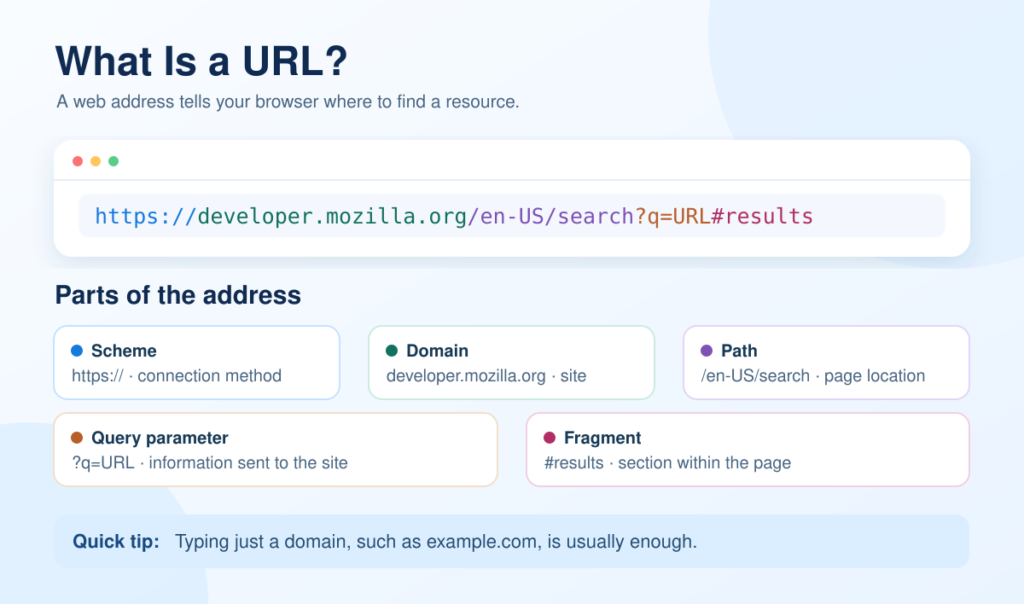
URL stands for Uniform Resource Locator. According to MDN Web Docs, maintained by Mozilla, a URL is the address of a unique resource on the internet, and it is one of the key mechanisms browsers use to find pages, images, and other files.
A full URL has several parts. Here is how MDN breaks down an example address, https://developer.mozilla.org/en-US/search?q=URL#results:
| Part | Example | What It Does |
|---|---|---|
| Scheme | https | Tells the browser which protocol to use to request the page |
| Domain | developer.mozilla.org | Identifies which web server to contact |
| Port | Usually hidden | The technical “gate” on the server; standard ports (80 for HTTP, 443 for HTTPS) are normally left out |
| Path | /en-US/search | The location of the page on that server |
| Parameters | ?q=URL | Extra information sent to the server as key and value pairs |
| Anchor | #results | Points to a specific spot on the page; it is never sent to the server |
In daily use, you rarely need to type the full address. Typing just the domain, such as amazon.com, is usually enough. Your browser fills in the rest.
Why Your Browser Combines Search and Address Bars
The main reason browsers merged the two boxes is simplicity. With one box, you do not need to think about where to type. You just type what you want, and the browser figures out the rest.
This design offers a few clear benefits:
- Less decision-making: You do not have to pick between a search field and an address field.
- More screen space: One box takes up less room than two, which matters a lot on phones.
- Faster results: Suggestions from your history, bookmarks, and search engine appear in one list.
- Easier learning: New internet users only need to learn one tool.
The trade-off is that the browser has to guess what you mean. Most of the time, it guesses right. When it gets it wrong, you end up on a search results page instead of the website you wanted. The next section explains how that guess works.
How Does Your Browser Know Whether to Search or Open a Website?
When you press Enter, your browser looks at the structure of what you typed and makes a decision. Chromium, the open-source project behind Chrome, describes these rules in its omnibox design notes.
Your browser usually treats input as a website address when it:
- Looks like a domain, such as
www.google.comorexample.com - Starts with
http://orhttps:// - Contains a slash in a URL-like pattern
- Matches a site you have visited before
Your browser usually treats input as a search when it:
- Contains several words separated by spaces
- Is a single word with no dot or domain ending
- Is written as a question
Here is how that plays out in practice:
| What You Type | What Chrome Does |
|---|---|
amazon | Runs a search for “amazon” |
amazon.com | Opens the Amazon website |
how to bake sourdough | Runs a search |
https://www.example.com | Opens the website |
Single words are the tricky case. According to Chromium’s design notes, a single word defaults to a web search, while the browser quietly checks in the background whether that word is also the name of a local network address. If it is, Chrome may show a “Did you mean” suggestion.
Tip: If you want to open a site from a single word, type the word and press Ctrl + Enter (Windows, Linux, ChromeOS) or Ctrl + Return (Mac). Chrome’s help center confirms this shortcut adds “www.” and “.com” to the word and opens the site. For example, typing google and pressing Ctrl + Enter opens www.google.com.
What Happens When You Start Typing in the Address Bar?
Your browser does not wait for you to press Enter. It starts working as soon as you type the first letter.
As you type, Chrome builds a list of suggestions from several sources. Chromium’s documentation lists these suggestion types:
- History results: Pages you have visited before that match your text
- Previous URLs: Exact addresses you have typed in the past
- Navigation suggestions: Websites your search engine suggests
- Search suggestions: Search terms your search engine predicts
- Search for: The option to simply search for exactly what you typed
To speed things up, Chrome may also preconnect to your default search engine in the background, according to Chrome’s help center. Google has also made the address bar smarter over time. On October 18, 2023, Google announced several Chrome address bar updates, including:
- Smarter autocomplete: Chrome can complete URLs based on words you have used before to search for a website. For example, typing “flights” can suggest Google Flights.
- Typo correction: Chrome can detect typos and show suggestions based on sites you have visited.
- Bookmark folder search: You can find bookmarks by including the folder name in your search.
- Popular site suggestions: Chrome can suggest popular sites even if you have never visited them or mistyped the address.
Firefox works in a similar way. Mozilla explains that Firefox adjusts address bar suggestions based on how frequently and recently you visited a page and which results you chose in the past.
Using the Google Search Option
The search option is designed for times when you do not know exactly where you want to go. You type a keyword, a question, or a website name, and Google shows you a list of matching results on a search engine results page (SERP).
How to search from the address bar:
- Open Chrome and click the address bar at the top (or the search box on the New Tab page).
- Type your search term, such as “best running shoes for flat feet.”
- Press Enter.
- Review the results and click the link that best matches what you need.
When searching is the better choice:
- You are learning about a new topic
- You want to compare products, services, or prices
- You are troubleshooting a problem
- You forgot a website’s exact address
- You need current information, such as news or weather
Limitations of searching:
- It can take longer, because you have to scan the results page before reaching a site.
- The best results depend on choosing good keywords.
- You may need to click through more than one page to find the right answer.
- Ads and sponsored results may appear above organic results.
Using the “Type a URL” Option
The URL option takes you directly to a website without stopping at a search results page. It is the fastest way to reach a site when you already know its address.
How to type a URL:
- Click the address bar.
- Type the website address, such as
gmail.comorirs.gov. - Press Enter.
You do not usually need to type https:// or www.. Your browser adds what is needed.
When typing a URL is the better choice:
- You visit the site regularly, such as your email, bank, or work tools
- You want to reach an official website without clicking an ad or a lookalike link
- You have the exact address from a trusted source, such as a printed bill or an official email
- You want to skip the search results page entirely
Limitations of typing a URL:
- You must know the correct address.
- A small typo can take you to the wrong site, or even a fake one designed to look real.
- It does not help you discover new websites or compare options.
Search or Type a URL: Which Way Is Better?
Neither option is always better. The right choice depends on what you already know and what you want to do.
| Situation | Best Option | Why |
|---|---|---|
| You know the exact website | Type a URL | It is faster and skips the results page |
| You are logging into your bank | Type a URL | It lowers the chance of clicking a fake site or ad |
| You are researching a topic | Search Google | You get many sources to compare |
| You forgot a site’s address | Search Google | Search can find the site from its name |
| You want to compare products | Search Google | Results show multiple options at once |
| You want a quick answer or conversion | Search Google | Answers often appear right in the results |
A simple rule to remember: If you know where you are going, type the URL. If you are still looking, search.
How to Search for a Specific Word or Phrase in Google
You can run any Google search straight from the Chrome address bar without visiting google.com first. Just type your words and press Enter.
To make your searches more precise, Google supports search operators. Google’s Search Help lists these common ones:
- Exact phrase: Put words in quotation marks, such as
"tallest building", to find that exact phrase. - Exclude a word: Put a minus sign before a word, such as
jaguar speed -car, to remove results that include it. - File type: Add
filetype:, such asphotoelectric effect paper filetype:pdf, to find a specific file format. - Date range: Use
before:andafter:with a date to narrow results to a time period.
These operators work the same whether you type them into the address bar or the Google homepage.
How to Search a Website in Google
If you want results from only one website, use the site: operator. Type site: followed by the domain, then your search term. For example:
site:youtube.com cat videos
This tells Google to show only results from youtube.com. Google’s Search Help adds one important rule: do not put a space between the operator and the domain. site:nytimes.com works, but site: nytimes.com does not.
This is also a handy trick for website owners. Typing site:yourdomain.com into the address bar gives you a quick look at which of your pages appear in Google’s results.
How to Add a Custom Site Search in Chrome
Chrome lets you create your own shortcuts to search specific websites directly from the address bar. This is where a phrase many people search for comes in: “URL with %s in place of query.”
That phrase is the actual name of a field in Chrome’s settings. Here is how to use it, based on Chrome’s help center:
- Open Chrome and click the three-dot menu, then Settings.
- Select Search engine, then Manage search engines and site search.
- Next to “Site search,” click Add.
- Fill in the three fields:
- Search engine: A name for the shortcut, such as “Wikipedia”
- Shortcut: The text you will type to trigger it, such as “wiki”
- URL with %s in place of query: The address of the site’s search results page, with
%swhere your search term should go
- Click Add.
For example, Google’s own help page uses http://www.google.com/search?q=%s as the example URL. The %s is a placeholder. When you search, Chrome replaces it with the words you typed.
Once saved, you can type your shortcut in the address bar, press Tab, and then type your search to search that site directly.
Google Autocomplete Predictions
As you type in the address bar or on google.com, you see a list of predicted searches. These are called autocomplete predictions.
According to Google’s Search Help, autocomplete predictions come from real searches that have been done on Google. They take into account factors such as your language, location, trending interest, and past searches. Google may also predict individual words and phrases based on real searches and word patterns found across the web.
A few important facts about autocomplete:
- It is a time-saver, not a popularity ranking. Google says autocomplete does not simply show the most common searches. If you want to research search popularity, Google points to Google Trends instead.
- Some predictions are filtered. Google’s automated systems are designed to block predictions that are violent, sexually explicit, hateful, disparaging, or dangerous. It also has policies against certain election-related, medical, and unsubstantiated claims.
- You can still search anything. Even if a prediction does not appear, you can finish typing your full query and get results.
- You can manage predictions. Google allows you to turn off, remove, and report some predictions.
To remove a single suggestion from Chrome’s address bar, highlight it with the down arrow key and press Shift + Delete (Windows) or Shift + fn + Delete (Mac).
Using Voice Search and Google Lens From the Address Bar
Typing is not the only way to search.
Voice search: In Chrome on Android, you can add a voice search button to the toolbar. Chrome’s help center explains that if the voice search shortcut does not appear, you can go to More > Settings > Toolbar shortcut and select Voice search. On desktop, when you use AI Mode from the address bar, Chrome shows a microphone icon you can use to speak your question.
Google Lens: In August 2024, Google announced that Google Lens was coming to Chrome on desktop, starting in the U.S. You can open it by clicking the Google Lens icon in the address bar, or by right-clicking on a page. Lens lets you select anything on your screen, such as an image or a product, and search for it without leaving your current tab.
“Ask Google or Type a URL”: AI Mode in the Address Bar
If your Chrome now says “Ask Google or type a URL” instead of “Search Google or type a URL,” you are seeing one of the newest changes to the browser. Both versions of the prompt exist in Chrome’s source code, and Google is shifting the wording from “search” to “ask” as it adds AI features.
On September 18, 2025, Google announced that AI Mode would roll out in the Chrome omnibox in the U.S. later that month, starting in English. AI Mode lets you ask complex, multi-part questions from the same place you already search and browse, and then ask follow-up questions.
According to Chrome’s help center, here is how to use AI Mode from the address bar on a computer:
- Open Chrome.
- Select the AI Mode icon on the right side of the address bar (or press Tab, then Enter).
- Type your question.
- Optionally, use the microphone icon to speak, or the media icon to add images, files, tools, or models.
Google notes that AI Mode is not available to everyone or on every device yet, and that it is gradually expanding to more countries and languages.
Want to hide it? Chrome’s help center says you can right-click the address bar and unselect Always show AI Mode to hide the AI Mode button.
Google also announced contextual search suggestions, which show questions in the address bar related to the page you are viewing. For example, if you are shopping for a mattress, Chrome may suggest a question about its warranty policy.
Address Bar Names and Search Settings Across Browsers
Every major browser uses a combined search and address bar, but the name, default search engine, and settings location differ.
| Browser | What the Bar Is Called | Default Search Engine | Where to Change It |
|---|---|---|---|
| Google Chrome | Omnibox / address bar | Settings > Search engine | |
| Mozilla Firefox | Address bar | Varies by region | Settings > Search |
| Microsoft Edge | Address bar | Bing | Settings > Privacy, search, and services > Search and connected services > Address bar and search |
| Apple Safari | Smart Search field | Safari > Settings > Search |
A few notes worth knowing:
- Edge: Microsoft says you must first run a search with a search engine in the address bar before it appears as an option in Edge’s list.
- Safari: Google has long been Safari’s default search engine. In its August 2024 ruling in the U.S. antitrust case against Google, the court found that Google paid Apple an estimated $20 billion in 2022, as reported by NPR.
- Firefox: When Firefox detects that a third party has hijacked your search settings, Mozilla says it can fix itself by resetting to default settings.
Search Google or Type a URL on Mobile Phones
The same idea applies on phones, with a few differences.
- Shorter prompt: On Android and iPhone, Chrome’s prompt reads “Search Google or type URL” or “Search or type URL,” according to Chrome’s source code. The shorter text fits smaller screens.
- Suggestions matter more: Typing on a touchscreen is slower than using a keyboard, so mobile browsers lean heavily on suggestions and autocomplete. Tapping a suggestion is often faster than typing a full address.
- You can move the address bar: Chrome lets you place the address bar at the top or bottom of the screen. On Android, Chrome’s help center says to tap More > Settings > Address bar, then choose Top or Bottom. You can also touch and hold the address bar and choose to move it. This only works in portrait mode; in landscape mode, it stays at the top.
- Google Lens and voice: Mobile Chrome offers Google Lens and voice search options from the address bar or toolbar.
Useful Address Bar Shortcuts
Keyboard shortcuts make the address bar much faster to use. Here are the most useful ones, taken from Google’s official list of Chrome keyboard shortcuts:
| Action | Windows / Linux | Mac |
|---|---|---|
| Jump to the address bar | Ctrl + L, Alt + D, or F6 | ⌘ + L |
| Search from anywhere on the page | Ctrl + K or Ctrl + E | Not listed |
| Add www. and .com to a word and open it | Type word + Ctrl + Enter | Type word + Ctrl + Return |
| Add www. and .com and open in a new window | Type word + Ctrl + Shift + Enter | Type word + Ctrl + Shift + Return |
| Open a Google search in a new tab | Type search + Alt + Enter | Not listed |
| Open a website in a new background tab | Not listed | Type address + ⌘ + Return |
| Search with a different search engine | Type engine name + Tab | Type engine name + Tab |
| Remove a suggestion | Down arrow + Shift + Delete | Down arrow + Shift + fn + Delete |
Chrome @ shortcuts: In December 2022, Google introduced three shortcuts you can type in the address bar:
- @tabs to search your open tabs
- @bookmarks to search your bookmarks
- @history to search your browsing history
Type the shortcut, then your search term, and matching results appear in the dropdown. You can edit or turn off these shortcuts in Chrome’s site search settings.
Firefox symbols: Firefox lets you filter address bar results by adding a special character to your search. According to Mozilla:
- ^ shows only matches in your browsing history
- * shows only matches in your bookmarks
- + shows only matches in tagged bookmarks
- % shows only matches in your open tabs
- # shows only matches in page titles or tags
- $ shows only matches in web addresses
- ? shows only search suggestions
Safari Quick Website Search: Apple explains that when Quick Website Search is turned on, Safari remembers searches you run within a website. Later, you can type the site’s name followed by your search term in the Smart Search field to search that site directly.
How to Change Your Default Search Engine
The word “Google” in “Search Google or type a URL” comes from your default search engine. If you switch to a different engine, the prompt in Chrome’s address bar updates to match. Here is how to change it in each browser.
Google Chrome (computer):
- Click the three-dot menu, then Settings.
- Select Search engine.
- Click Change and choose your preferred search engine.
Mozilla Firefox:
- Open the menu, then Settings.
- Select Search.
- Use the drop-down under Default search engine to pick a new one.
Microsoft Edge:
- Run a search in the address bar using the search engine you want.
- Go to Settings and more > Settings > Privacy, search, and services.
- Select Search and connected services, then Address bar and search.
- Choose your engine from the Search engine used in the address bar menu.
Apple Safari (Mac):
- Open Safari.
- Click the magnifying glass to the left of the Smart Search field.
- Choose a search engine from the list. You can also adjust search options in the Search pane of Safari’s settings.
How to Customize the “Search Google or Type a URL” Page: Themes and Dark Mode
Many people search for phrases like “search Google or type a URL theme” or “search Google or type a URL black.” That is because they want to change how Chrome’s New Tab page looks, including the search box.
You cannot delete the prompt itself, but you can change the page around it. Chrome’s help center explains how:
- Open a New Tab page.
- Click Customize Chrome at the bottom right.
- Under Appearance, choose a theme from the gallery or upload your own image.
- Choose Light, Dark, or Device to control the color mode. Picking Dark gives you the black look many people want. Device follows your computer’s own setting.
- Under Shortcuts, choose My shortcuts or Most visited sites, or turn off Show shortcuts.
To undo your changes, select Reset to Default Chrome at the bottom of the panel. Google notes that some of these options require you to be signed in to your Google Account and to use Google as your default search engine.
Fixing Common Address Bar Problems
Most address bar issues have simple causes. Here is how to handle the ones people run into most often.
I Typed a URL, But It Searched Google Instead
This usually happens for one of these reasons:
- You typed a single word. A word like “facebook” has no domain ending, so Chrome treats it as a search. Type
facebook.cominstead, or use Ctrl + Enter. - A suggestion was highlighted. If a search suggestion was selected when you pressed Enter, the browser followed it. Remove unwanted suggestions with Shift + Delete.
- Your default search engine changed. Check your search engine settings to confirm it is the one you chose.
- An extension is interfering. Some extensions change how the address bar works. Review your installed extensions and remove any you do not recognize.
Why Did My Browser Settings Change on Their Own?
If your homepage or search engine changed without your permission, take it seriously. Google’s Chrome help center lists these as possible signs of malware or unwanted software:
- Pop-up ads and new tabs that will not go away
- Your homepage or search engine keeps changing without your permission
- Unwanted extensions or toolbars keep coming back
- Your browsing is hijacked and redirects to unfamiliar pages
- Alerts claiming your device has a virus
Mozilla describes the same problem as search hijacking, which happens when a third party sneaks files onto your computer and changes your browser settings without permission. One strong sign is not being able to change your homepage or search settings back.
How to fix it in Chrome:
- Remove unwanted programs. On Windows, go to Start > Settings > Apps > Installed apps and uninstall anything suspicious. On Mac, open Finder > Applications, move unwanted apps to the Trash, and empty it.
- Reset Chrome. Go to More > Settings > Reset settings > Restore settings to their original defaults, then confirm.
- Check your extensions. Go to More > Extensions > Manage extensions and keep only the ones you trust.
Prevention matters even more than cleanup. Avoid downloads from suspicious sites and ignore pop-ups that claim your computer is infected. For more ways to stay safe, see our guide on how to keep your computer protected from malware.
My Address Bar Is Not Working or Suggestions Are Missing
If the address bar freezes or suggestions stop appearing, try these steps in order:
- Restart your browser. This fixes many temporary glitches.
- Check your internet connection. Search suggestions come from your search engine, so they need a working connection.
- Check your suggestion settings. You may have turned off search suggestions in your privacy settings (see the next section).
- Disable extensions one by one. Ad blockers and privacy tools can sometimes interfere.
- Update your browser. Outdated versions can have bugs that newer releases fix.
- Reset your browser settings. Use the reset steps above as a last resort.
Privacy: What Happens to What You Type in the Address Bar?
Many users are surprised to learn that the address bar can send what they type to their search engine before they press Enter. This is how live suggestions work, and every major browser documents it.
- Chrome: Google’s help center says that when Improve search suggestions is on, Chrome sends the text you type, your IP address, and certain cookies to your default search engine. If Google is your default and Make searches and browsing better is on, Chrome also sends the URL of the page you are viewing. Chrome says it does not send text it detects as sensitive, such as passwords or local file names. To turn this off, go to Settings > You and Google > Google services and switch off Improve search suggestions.
- Microsoft Edge: Microsoft says the text you enter in the address bar is sent to your default search provider to give you suggestions. Automatic suggestions are turned off in InPrivate browsing. To disable them, go to Settings > Privacy, search, and services > Search and connected experiences > Address bar and search and turn off Show me search and site suggestions using my typed characters.
- Firefox: Mozilla says that when search suggestions are on, the text you type is sent to your default search engine. Suggestions are off by default in Private Browsing. To disable them, go to Settings > Search and uncheck Show search suggestions.
- Safari: Apple notes that when Include search engine suggestions is on, the search engine may record your search terms. You can turn this off in the Search section of Safari’s settings.
A note on the padlock icon: Older versions of Chrome showed a lock icon in the address bar for HTTPS sites. Starting with Chrome 117 in September 2023, Google replaced it with a “tune” icon. The Chromium team explained that the lock was often misunderstood as a sign that a site is trustworthy, when it only means the connection is encrypted. In Google’s research, only 11% of study participants correctly understood what the lock meant, and nearly all phishing sites use HTTPS anyway. The lesson: a secure connection does not guarantee a safe website, which is one more reason to type the URLs of important sites yourself.
What Search Google or Type a URL Means for Website Owners
For businesses, the two options in the address bar represent two very different kinds of visitors.
People who type your URL already know your brand. They are loyal customers, returning users, or people who heard your name somewhere. This is direct traffic, and it reflects brand strength.
People who search have not decided yet. They are comparing, researching, or looking for a solution. This is where new customers come from, and it is where your competitors are fighting for the same attention.
The scale is enormous. In March 2025, Google said it sees more than 5 trillion searches annually. Every one of those searches started with someone choosing “search” over “type a URL.”
To show up when people search instead of typing your address, focus on the basics:
- Get your pages indexed. Google’s Search Central explains that you can ask Google to crawl a small number of pages with the URL Inspection tool in Search Console, or submit a sitemap for many URLs at once. Google also notes that crawling can take anywhere from a few days to a few weeks, and requesting a crawl does not guarantee your page will appear in results.
- Check what Google sees. The URL Inspection tool shows information about Google’s indexed version of a specific page and lets you test whether a URL can be indexed.
- Use clean, readable URLs. A clear address like
/search-google-or-type-a-url/tells both users and search engines what the page is about. - Write for real questions. Match what people actually type, not just the terms you prefer.
- Prepare for AI answers. With AI Mode now built into the Chrome address bar, more searches may end in an AI-generated answer. It is worth learning how AI search visibility is tracked so you know whether your brand appears in those answers.
Conclusion
“Search Google or type a URL” is one of the most common phrases on the internet, and now you know exactly what it means. It is Chrome’s way of telling you that one box handles two jobs: searching the web and opening websites. The word “Google” simply reflects your default search engine, and newer versions of Chrome are starting to say “Ask Google or type a URL” as AI Mode rolls out.
The best approach is simple. Type the URL when you know where you want to go, especially for banking, email, and other sensitive sites. Search when you are exploring, comparing, or unsure of the address. Learn a few shortcuts like Ctrl + L and Ctrl + Enter, keep an eye on your search engine settings, and review your privacy options if you do not want your typing sent to a search provider. With these habits, that small line of text in your browser becomes a faster and safer way to use the web.
Frequently Asked Questions
1. What does “Search Google or type a URL” mean?
It is the placeholder text in Google Chrome’s search box. It means you can either type a search term to search Google or type a web address (URL) to go directly to a website. The word “Google” reflects your default search engine.
2. Why does typing “facebook” search Google instead of opening Facebook?
A single word has no domain ending, so Chrome treats it as a search. Type facebook.com instead, or type facebook and press Ctrl + Enter (Ctrl + Return on Mac) to add “www.” and “.com” automatically.
3. What is the difference between “Search Google or type a URL” and “Ask Google or type a URL”?
They do the same basic job. “Ask Google or type a URL” is a newer version of the prompt found in Chrome’s source code, and it reflects Google’s move toward AI-powered answers, such as AI Mode in the address bar.
3. What does “URL with %s in place of query” mean?
It is a field in Chrome’s site search settings. When you add a custom search shortcut, you paste the website’s search results address and replace the search term with %s. Chrome then swaps %s for whatever you type. Google’s example is http://www.google.com/search?q=%s.
4. How do I open the Chrome omnibox quickly?
Press Ctrl + L, Alt + D, or F6 on Windows and Linux, or ⌘ + L on Mac. This jumps straight to the address bar so you can start typing.
5. Does typing in the address bar send my data to Google?
If search suggestions are turned on and Google is your default search engine, yes. Chrome sends what you type, your IP address, and certain cookies to provide suggestions. You can turn this off under Settings > You and Google > Google services > Improve search suggestions.
6. What is the “Search Google or type a URL” game?
Many people link this phrase to the Chrome dinosaur game. The game appears when Chrome cannot connect to the internet, and you can also open it by typing chrome://dino in the address bar.
7. What is Google URL search?
The term can mean searching Google from the address bar, but for website owners it often refers to Google Search Console’s URL Inspection tool. That tool shows information about Google’s indexed version of a specific page and lets you test whether a URL can be indexed.
